On this page
You can reduce crowd noise in iZotope RX 12, but the right tool depends on what the crowd is doing. Use Dialogue Isolate for a steady audience bed behind speech, Spectral Repair for a local shout, clap or whistle, Music Rebalance when applause overlaps music, and De-reverb when the remaining problem is a long room tail. One aggressive “noise removal” pass is rarely the safe bet.
First save a copy of the original recording. Work on a short, representative section, preview every move and compare it with bypass at the same listening level. Usually you want the wanted voice or performance easier to follow; forcing a live recording into artificial silence rarely helps.
Choose the RX tool by the shape of the crowd noise
| What you hear | Start with | Main risk |
|---|---|---|
| Continuous chatter, cheering or stadium wash behind one speaker | Dialogue Isolate | A hollow or watery voice when Noise is reduced too far |
| One shout, clap, cough or whistle in a limited moment | Spectral Repair in Attenuate mode | Damaging nearby speech or music with a selection that is too broad |
| Applause or crowd reactions mixed into a song or live performance | Music Rebalance, then local Spectral Repair if needed | Removing instruments that share cues with the crowd |
| Crowd sound smeared by a hall, arena or church | De-reverb after the main crowd reduction | Making the direct signal thin or unstable |
When the problem is a general fan, hiss, air conditioner or traffic bed with no recognizable people in it, start with the broader RX background-noise workflow. Crowd sound changes over time and often overlaps the same frequencies as the person or performance you want to keep, so it needs a more selective approach.
Listen before processing: crowd noise is four different problems
Play the worst section and ask what stays consistent. A continuous audience bed behind an interview behaves like a competing source. A whistle or nearby clap is a local event. Applause over a concert recording is part of a dense music mixture. A large room can stretch all of those sounds into reflections that continue after the original event.
Look at the spectrogram as well as the waveform. A local shout may appear as a short, bright cluster. A whistle can form a narrow horizontal line or curved partial. Applause often creates many brief vertical transients. Continuous chatter tends to spread across a wide frequency range and change from moment to moment. The visual shape helps you decide whether to process the whole passage or draw around one event.
Use Dialogue Isolate for a steady crowd behind speech
For an interview, presentation, sports commentary or announcement, Dialogue Isolate separates Voice, Reverb and Noise and provides a Sensitivity control. That source-based design makes it a better starting point than a generic denoiser when the background contains other people rather than a stable machine-like noise.
Start with the voice unchanged and lower Noise in small steps. If the room is also obscuring the speaker, reduce Reverb separately; not every diffuse sound belongs in the Noise stem. Touch Sensitivity only when the module keeps missing the speaker or pulls too much background into the voice. You’re after intelligibility with believable ambience, and a perfectly silent gap between words isn’t the target.
Use the Good/Real-time quality mode while finding the direction, then switch to Best/Offline for the final render when time allows. Listen to consonants, breaths and word endings. Metallic tails, unstable ambience or a voice that seems detached from the room are signs that the reduction has gone too far.
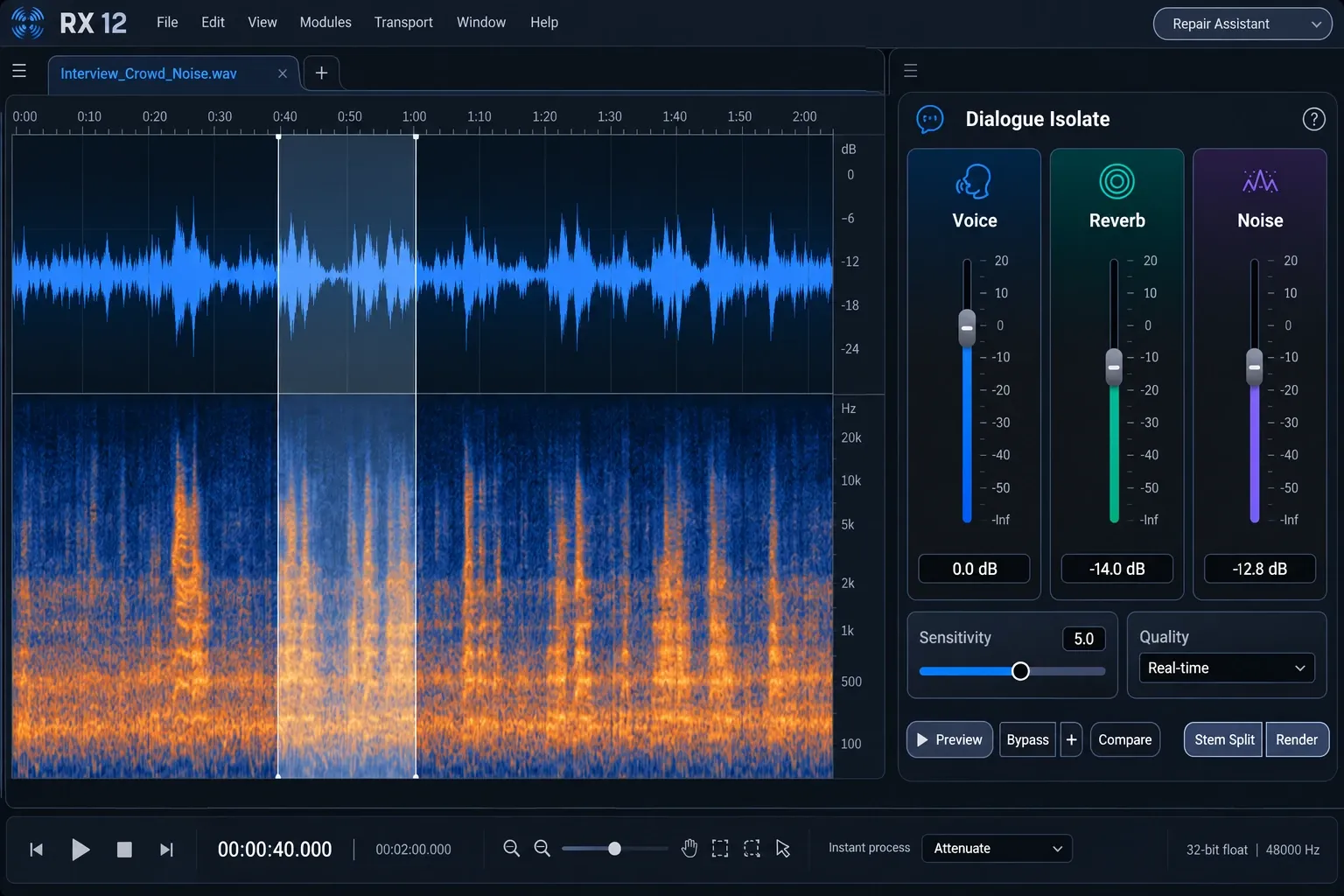
The detailed Dialogue Isolate guide covers the module controls and alternative modules. On this page, the important decision is simpler: use it when the wanted source is dialogue and the crowd forms a continuing background layer.
Remove a local shout, clap or whistle with Spectral Repair
One audience reaction doesn’t justify processing a full interview. Zoom in, select only the offending sound and open Spectral Repair. RX provides Time, Time-Frequency, Frequency, Lasso, Brush and Magic Wand selection tools in its documented interactive toolset. A time-frequency box works for a compact event; Lasso or Brush helps when the noise has an irregular shape.
Reach for Spectral Repair’s Attenuate mode first. It reduces the selected energy by drawing on surrounding material instead of deleting the whole moment. Keep the selection tight, add enough feathering to soften the boundary and preview at least one second before and after the repair. A slightly audible reaction often sounds more natural than a deep hole in a word or musical note.
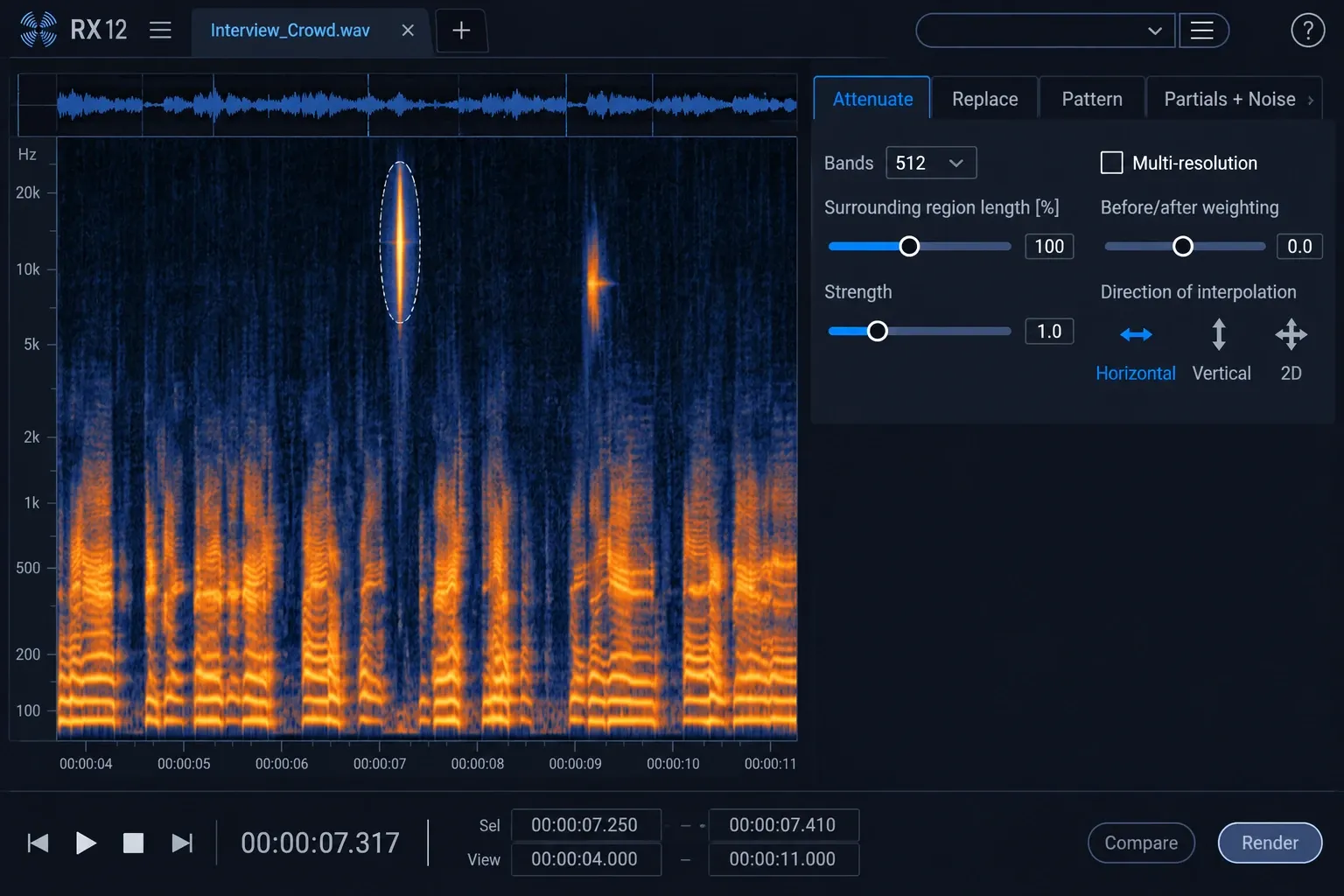
If Attenuate leaves too much noise, make a second lighter pass before you expand the selection. Replace, Pattern and Partials + Noise are available for other structures, and each solves a different spectral problem. The full Spectral Repair guide explains those modes. For several separate reactions, the intermittent-noise workflow helps organize repeated local repairs without processing clean sections.
Treat applause over music as a source-separation problem
A live song, recital or concert recording is harder because the crowd and performance can occupy the same moment. Music Rebalance controls Voice, Bass, Drums and Other; it wasn’t designed as a crowd remover. It can still help when the wanted content maps reasonably well to those musical groups and applause lands mostly in what the separation model treats as Other or as transient material outside the core performance.
Preview the densest applause and the quietest musical passage. Move one group at a time so you can hear what the model has placed there. A modest change may improve the balance, while a large reduction can pull out cymbals, room energy, backing parts or parts of the vocal. If the applause shows up only between phrases, local Spectral Repair or simple level automation may keep more of the music than a global rebalance.
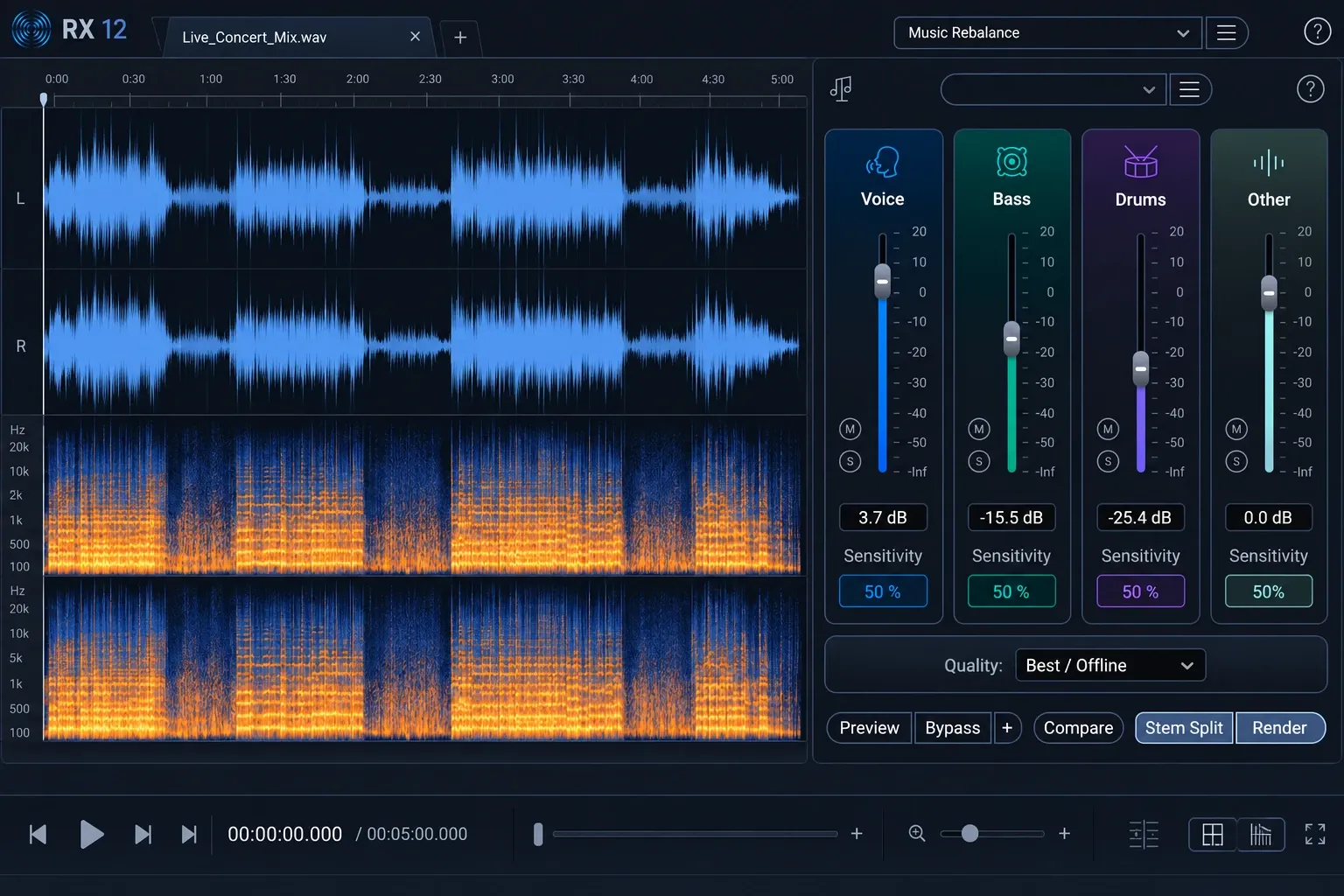
Use the dedicated Music Rebalance guide when you need more detail on the four source groups and separation workflow.
Reduce long crowd reflections after the main cleanup
In an arena, hall or church, the audience may stop but the sound keeps going as a room tail. That’s a reverb problem. Process the direct crowd bed or local event first, then use De-reverb on the remaining reflections. Strip the room aggressively at the start and later source separation can inherit a thin, unstable signal.
The De-reverb Learn function estimates the wet/dry relationship and decay behavior from the selected material. Give it a representative passage that contains direct sound, room tone and audible decay tails. Keep reduction moderate and listen to transitions between speech or notes, because over-processing can make the wanted source pulse or lose body.
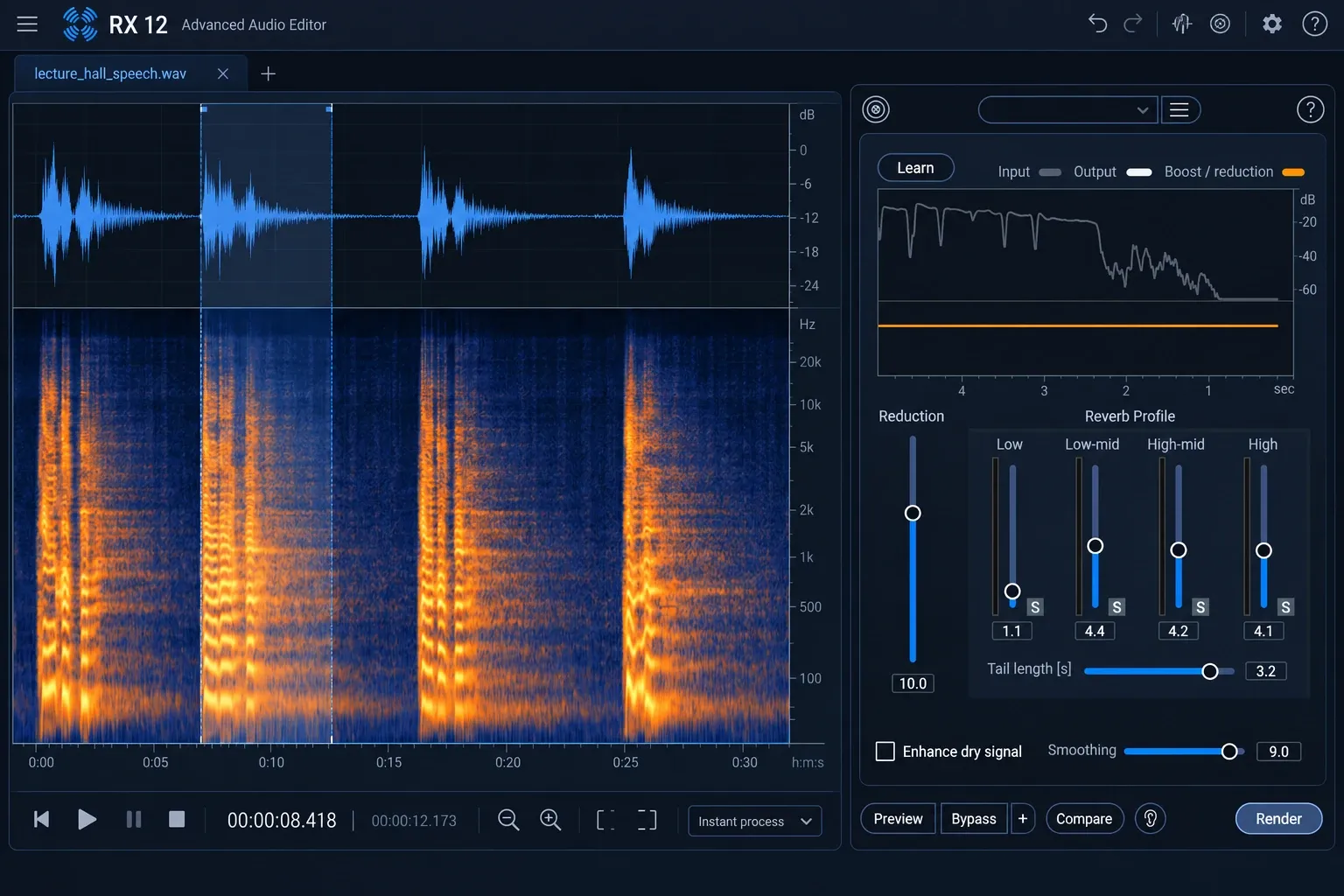
The complete RX De-reverb guide covers learning and reduction choices in more detail.
A practical processing order
- Duplicate the source. Keep an untouched original and create a working copy.
- Fix clipping or severe recording faults first. A damaged peak can mislead later processing.
- Reduce the continuous crowd bed. For speech, this usually means Dialogue Isolate.
- Repair isolated reactions. Select individual shouts, claps or whistles and use Spectral Repair.
- Control room tails. Apply De-reverb only if reflections still obstruct the wanted source.
- Match level and compare. A quieter processed file can appear cleaner simply because it is quieter.
- Export a new version. Keep the original and document the main processing choices.
Treat this order as a starting point you can bend. If one isolated whistle is the only serious defect, repair it and stop. Every extra module creates another chance to damage the wanted signal. The broader RX audio-repair workflow explains how to prioritize problems and keep the process reversible.
When crowd noise cannot be removed cleanly
No restoration tool can recreate detail that was never captured. If a cheer completely covers a word, or applause masks the same musical partials at the same moment, there may be no clean target information left to recover. Separation can estimate a plausible distinction, and spectral repair can interpolate from nearby audio, but neither produces an untouched original that did not survive in the recording.
Set a realistic goal: improve intelligibility, reduce distraction and keep the character of the event. Leave some audience sound when it tells the listener about the space or energy of the performance. Stop when the artifacts attract more attention than the crowd did. That call separates a useful repair from a technically quieter file that sounds less believable.