On this page
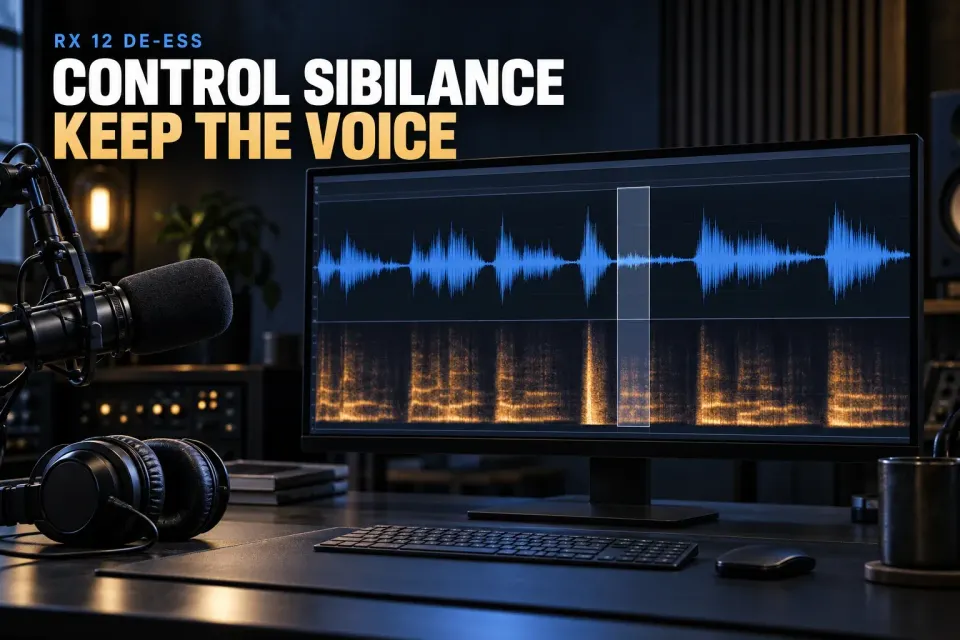
iZotope RX De-ess is for the consonants that jump out of an otherwise well-behaved voice: sharp S and SH sounds, airy F sounds and other short high-frequency bursts. Used well, it calms them without turning the whole recording into a darker copy of itself. That only works when the processing mode and the detector range match the actual problem.
Your first call is Classic or Spectral. Classic pulls the whole signal down each time RX detects sibilance. Spectral works only on the upper band where the consonant lives, so the low-frequency body of the voice stays put. De-ess ships as both a module and a plug-in in RX 12 Standard and Advanced.
Classic or Spectral: start with the reduction you need
| Situation | Start with | Reason |
|---|---|---|
| Spoken-word S sounds are bright but the vowels and body are balanced | Spectral | Targets the high-frequency sibilant region while preserving lower content |
| The entire consonant jumps forward as one short event | Classic | Applies unified broadband reduction when the detector triggers |
| Spectral processing leaves a thin whistle or an uneven upper band | Compare both | Classic may sound more coherent on that event |
| Classic makes the word duck or lose weight | Spectral | Limits the reduction to the upper-frequency problem |
The current RX 12 De-ess guide describes Spectral as a multiband compressor with dozens of bands. That makes it more selective, not automatically better. A consonant that sounds detached from its word can respond well to one short broadband dip, while everyday speech sibilance usually benefits from leaving the lower voice alone.
Read the De-ess interface from top to bottom
The module layout already hints at a sensible order: pick the algorithm, set Threshold, set Cutoff Frequency, choose Speed, and only then refine Spectral Shaping and Tilt if Spectral is active. The Absolute checkbox under the Threshold slider changes how Threshold is read.
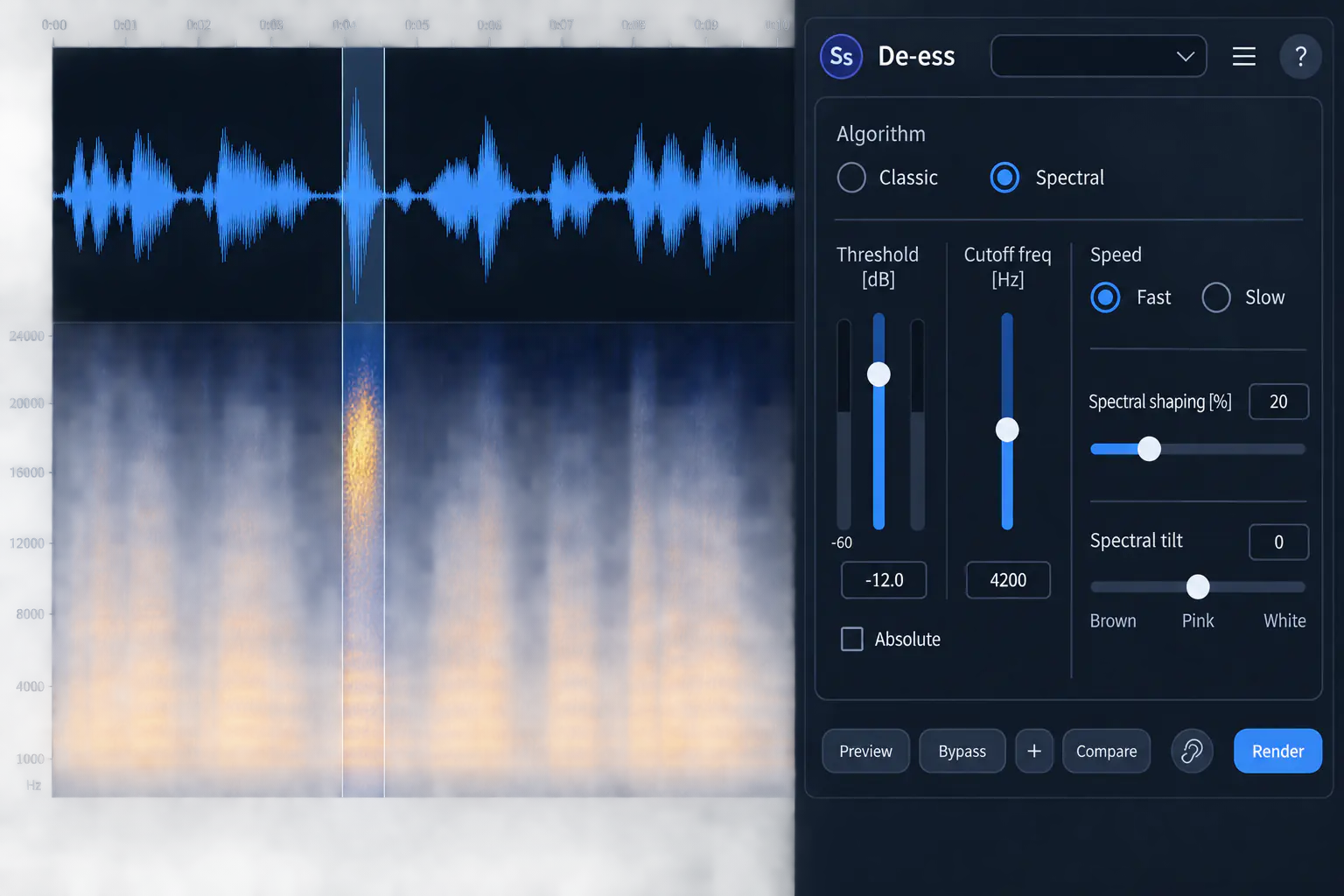
In Classic mode, Spectral Shaping and Spectral Tilt are greyed out: Classic uses one broadband gain envelope, so there are no separate upper bands to reshape. Along the bottom, Preview plays the current settings, Bypass gives you the untreated reference, Compare stores alternatives and Render commits the state you pick.
Set Cutoff Frequency before chasing Threshold
Cutoff Frequency sets the lower edge of the detector range, and anything below it is left out of sibilance detection. Put simply, this control decides what RX listens for, while Threshold decides how easily the detector reacts.
Set the cutoff too low and bright vowels, breaths and upper harmonics slip into the detection range. Pull Threshold down after that and the voice starts ducking far more often than you meant, when all you wanted was to restrain a few consonants. Set it too high and the detector may only catch the thinnest edge of an S while the harsh center goes untouched.
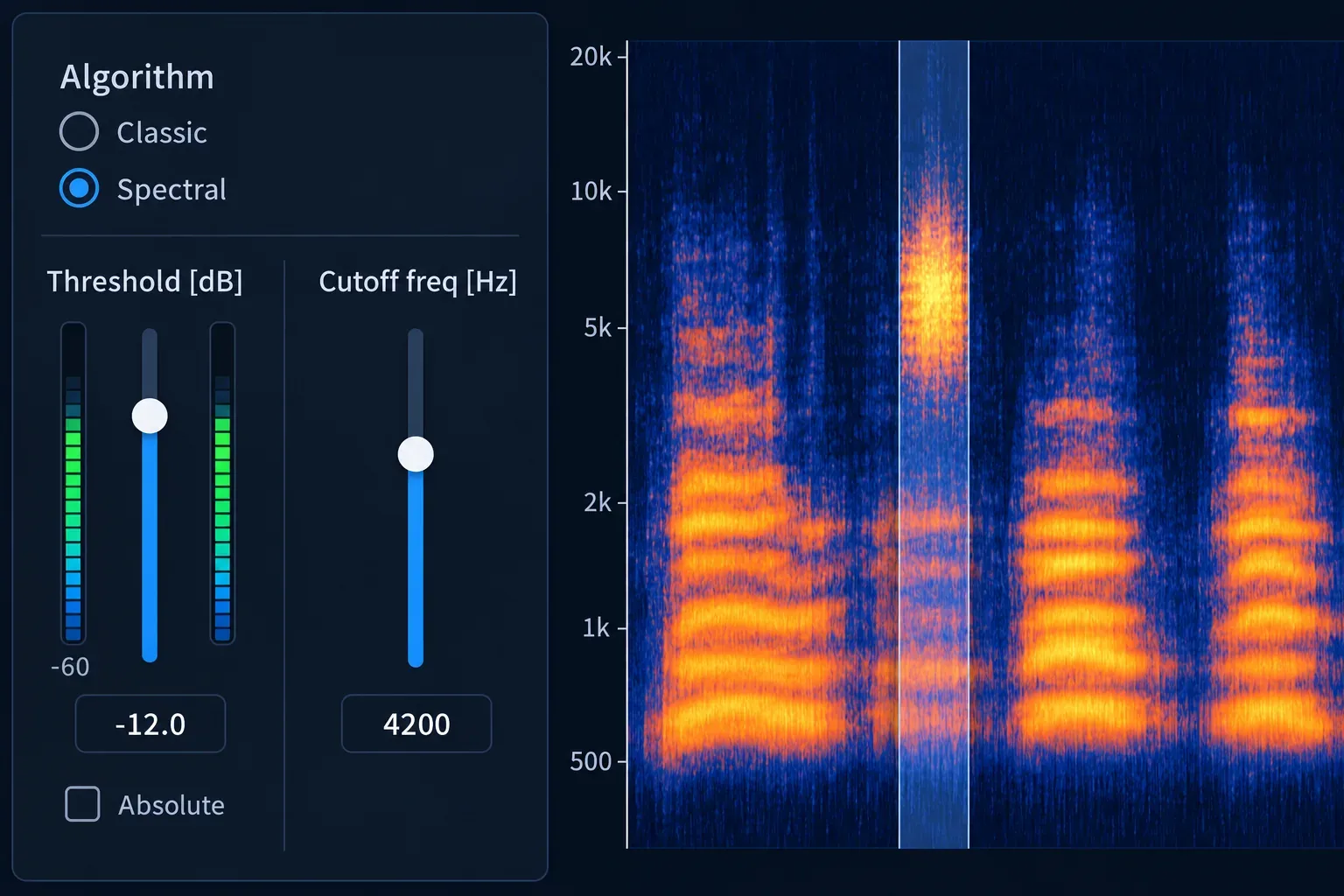
No cutoff suits every speaker. Use the spectrogram and a short selection to find where the offending consonant separates from the body of the word. Then compare a slightly lower and a slightly higher cutoff at the same Threshold. That keeps the detection-range decision apart from the reduction-strength decision.
Relative or Absolute Threshold?
With Absolute unchecked, Threshold runs in Relative mode, which the guide lists as the default: RX sets the threshold relative to the speech level it detects. For dialogue that rises and falls from phrase to phrase, that's the practical place to start, because the detector follows the speech instead of waiting for one fixed digital level.
Tick Absolute and Threshold becomes a fixed dBFS value. That helps when the level is tightly controlled and you want a stable numeric boundary. On a recording with a wide level range, though, it can miss the quieter sibilants and overreact on the louder passages.
A good Threshold makes the distracting consonants trigger every time without turning each bright syllable into an event. My suggestion: compare one conservative state with one lower-threshold state, then listen to the word before and after each S. The transitions usually give away over-processing before the consonant itself does.
Classic: broadband control
Classic turns down the full frequency range whenever sibilance crosses the threshold, so the voice dips for a moment as a whole sound, not just in the top band. The effect is easy to hear and can sound cohesive, especially when a whole consonant jumps forward rather than a narrow whistle.
Classic is the wrong tool when the lower voice already sits right and only the top end is abrasive. Broadband reduction then makes the word dip, pushes breaths forward by contrast or leaves an audible hole around the consonant.
Spectral: high-frequency control
Spectral attenuates the high-frequency region where sibilance lives and leaves the lower frequencies alone. That usually gives you more room to tame a sharp S without taking the chest and vowel energy underneath it.
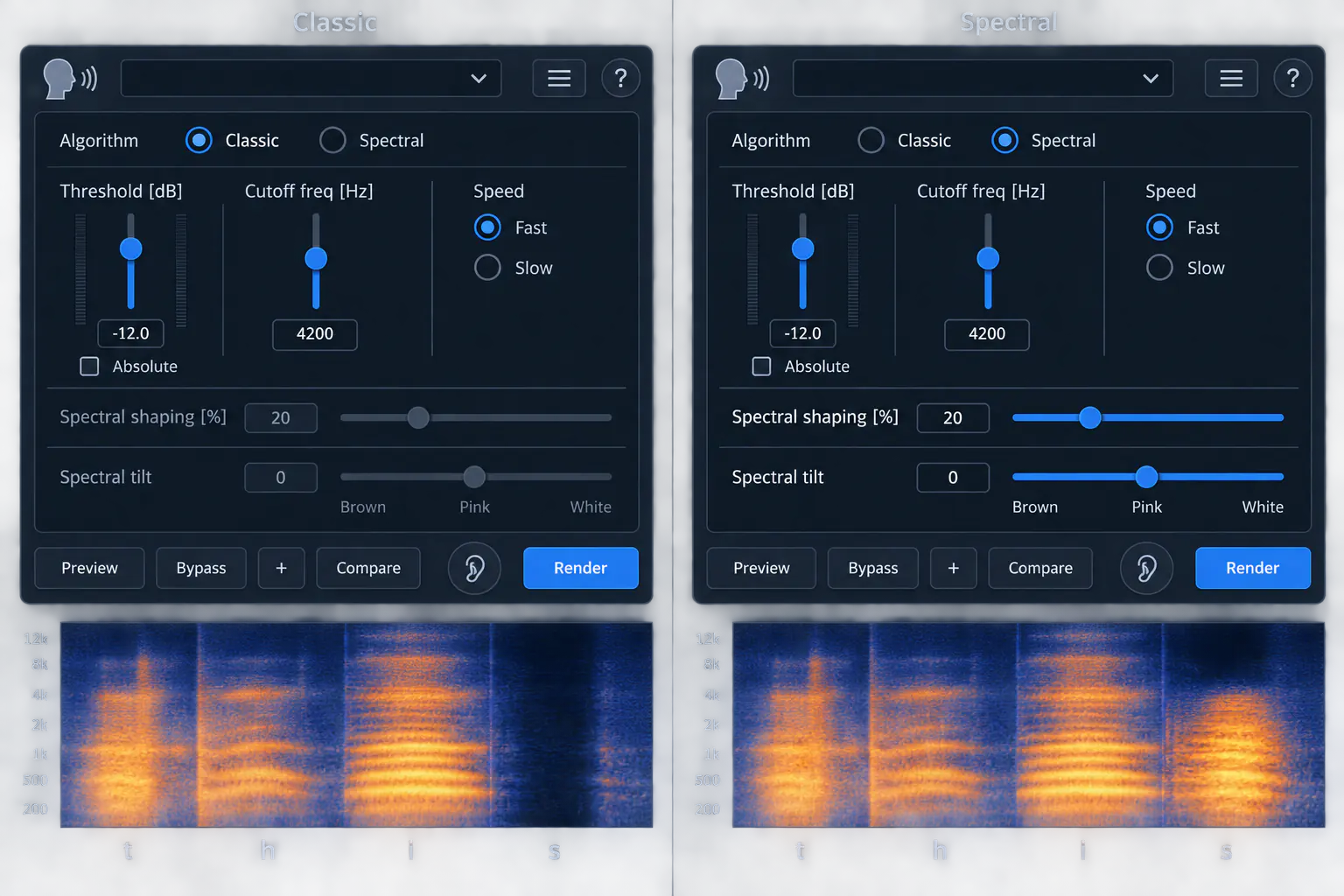
The extra controls aren't an invitation to reshape every voice. They solve narrower problems, and only after Threshold and Cutoff already point at the right events.
Spectral Shaping
At 0%, RX keeps the natural shape of the sibilance and compresses the affected bands evenly. As the value approaches 100%, the processed spectrum flattens toward the noise profile set by Tilt. The manual's control list calls this setting Spectral Flattening, while the module labels it Spectral Shaping. Stay near the natural end unless what's left of the sibilant sounds uneven, tonal or whistly and needs stronger redistribution.
Spectral Tilt
Tilt sets the target profile that Spectral Shaping works toward. Negative values lean toward a darker, brown-noise slope; zero follows a natural, pink-noise-like decline; positive values move toward a brighter white-noise profile. Tilt matters more as Spectral Shaping goes up. With shaping at zero, moving Tilt does very little in practice.
Fast or Slow Speed?
Fast uses quicker attack and release times, and the guide suggests it when De-ess makes the high frequencies pump. Slow uses longer times and can keep transients intact when Fast smooths the attack too much.
Pick by the problem you hear, not by the source label. If the top end flutters or pumps around a consonant, compare Fast. If the start of the consonant or a nearby transient loses its edge, compare Slow. Keep Threshold, Cutoff and the algorithm fixed while you judge Speed, so each change has one audible consequence.
A restrained De-ess workflow
- Select a representative phrase. Take in the problem consonant, the vowel before it and the next word boundary.
- Start in Spectral mode. Treat Classic as a deliberate comparison, not an automatic fallback.
- Set Cutoff Frequency. Place the detector above the useful body of the voice, with the harsh center of the consonant still inside its range.
- Set Threshold. Catch the distracting consonants without triggering on every bright syllable.
- Compare Relative and Absolute only when needed. Relative is the default and follows detected speech level; Absolute uses a fixed dBFS boundary.
- Compare Fast and Slow. Listen for pumping, softened attacks and unstable transitions.
- Refine Spectral Shaping sparingly. Raise it only when the remaining upper band needs redistribution, not more reduction.
- Save useful Compare states. Keep a conservative Spectral state and a stronger one, plus Classic if its broadband result holds up.
The Preview, Compare and History guide shows how to judge alternatives without losing your reference. Change one control between states; a pile of unrelated presets won't tell you which decision helped.
Common De-ess failures
The voice turns dull
Classic may be taking too much of the signal, or Spectral may be triggering too often. Try Spectral, raise Threshold and make sure Cutoff isn't letting useful vowel brightness into the detector range.
The speaker sounds lispy
The reduction is probably heavier or broader than the sibilance calls for. Raise Threshold, back off Spectral Shaping or compare a higher Cutoff. Judge whole words: an isolated S can sound controlled while the articulation around it feels off.
Some sibilants escape
Before you drag Threshold down hard, check whether the missed consonant sits below the current Cutoff. If phrase levels vary, Relative thresholding may also catch them more consistently. A lower threshold with the wrong detector range usually just adds collateral reduction.
The top end pumps
Compare Fast Speed, which the guide suggests for high-frequency pumping. If the detector fires across long stretches, go back to Threshold and Cutoff; Speed can't fix detection that's aimed at the wrong thing.
Attacks lose definition
Compare Slow. Its longer attack and release can keep transients intact when Fast smooths them too much. If only one consonant is the trouble, narrow the selection or use a more conservative threshold rather than processing a longer phrase than you need.
Where De-ess fits in a vocal cleanup chain
De-ess is a targeted consonant tool, not general noise reduction. The RX vocal cleanup guide helps you decide when mouth clicks, steady noise, room sound or plosives need their own pass. For spoken-word material, the dialogue cleanup hub puts sibilance control alongside the noise, reverb, plosive and level decisions. Stacking stronger De-ess settings on unrelated high-frequency noise can hurt articulation and still leave the real problem in place.
Check the current RX Elements vs Standard vs Advanced comparison before you choose an edition. De-ess is currently documented for Standard and Advanced, but bundles and licensing can change.
Final check before rendering
- The algorithm fits the job: broadband or high-frequency-only reduction.
- Cutoff Frequency takes in the harsh center of the consonant without pulling useful voice body into detection.
- Threshold catches the distracting events without reacting to every bright syllable.
- Relative or Absolute thresholding suits how the recording's level moves.
- Speed is fixing pumping or transient loss, not covering for a wrong detector setup.
- Spectral Shaping and Tilt are used only for a remaining spectral-balance problem.
- In Bypass and Compare, complete words and phrases still keep their natural articulation.
The safest De-ess settings are rarely the strongest ones. Pick the right reduction model, let Cutoff and Threshold define what counts as sibilance, and stop as soon as the consonant sits inside the word instead of drawing attention to itself.