On this page
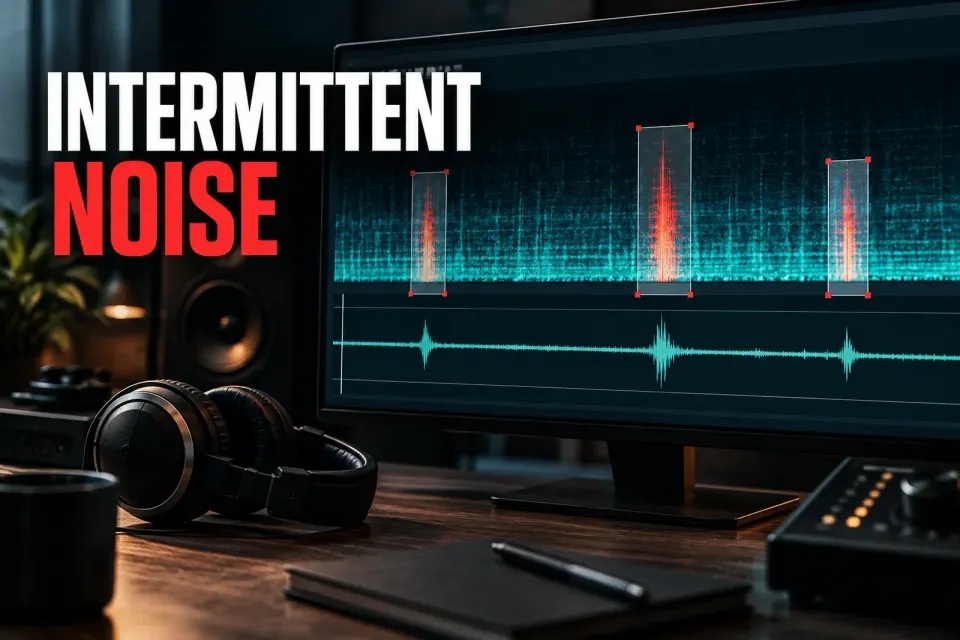
Intermittent noise isn't one defect. A phone ring, cable crackle, chair squeak, brief electrical buzz and passing background voice can all appear suddenly, yet each leaves a different time-frequency shape. The reliable RX workflow is to classify that shape first, then reach for the narrowest module and selection that fits it.
I'd start with four questions: Is the event shorter than a word? Is it tonal or broadband? Does it cover wanted audio? Does the same pattern repeat? Those answers usually point toward De-click, Spectral Repair, De-hum or a dialogue-focused denoiser without processing the whole file more heavily than necessary.
Choose the RX module by defect shape
| What the noise looks or sounds like | Start with | Why |
|---|---|---|
| A very short click, tick, pop or digital spike | De-click | It detects amplitude irregularities and interpolates short impulse damage |
| A local squeak, ring, bump, cough or mechanical burst | Spectral Repair | A time-frequency selection can target the event while leaving unrelated audio alone |
| A narrow tone or buzz that appears for a section | De-hum or Spectral Repair | De-hum handles persistent tonal families; Spectral Repair can attenuate one isolated tone |
| Changing background around speech | Dialogue Isolate or Voice De-noise | These modules separate or reduce broader noise around a voice rather than patching one spectral object |
| Several components in one event | Multiple small repairs | The attack, ring and residual noise may need different selections or modules |
Don't let the everyday name pick the tool. “Buzz” might be a continuous harmonic series, a train of rapid clicks or one isolated electronic chirp. The spectrogram and a frequency-selection audition tell you more than the word does.
Step 1: protect the source and inspect the event
Work on a copy or preserve a restorable original before rendering. Keep enough audio before and after the defect to judge ambience, timing and transitions. If the file belongs to a DAW project, confirm whether RX is editing a duplicate, a rendered clip or a shared source file.
Move the spectrogram/waveform balance toward the spectrogram and zoom until the event has a visible boundary. Use a time selection for full-band impulses, or a time-frequency, brush, lasso or wand selection when the defect occupies only part of the spectrum. RX's Spectral Repair documentation recommends fitting the selection to the corrupted audio and auditioning the selected signal before processing.
Listen to the selection by itself, then in context. A bright vertical line often indicates a transient. A horizontal line suggests a stable tone. A curved or clustered shape can be a squeak, ring or moving mechanical sound. The display is a guide; your ears, not the picture, decide whether the selection includes the whole defect.
Use De-click for true impulse noise
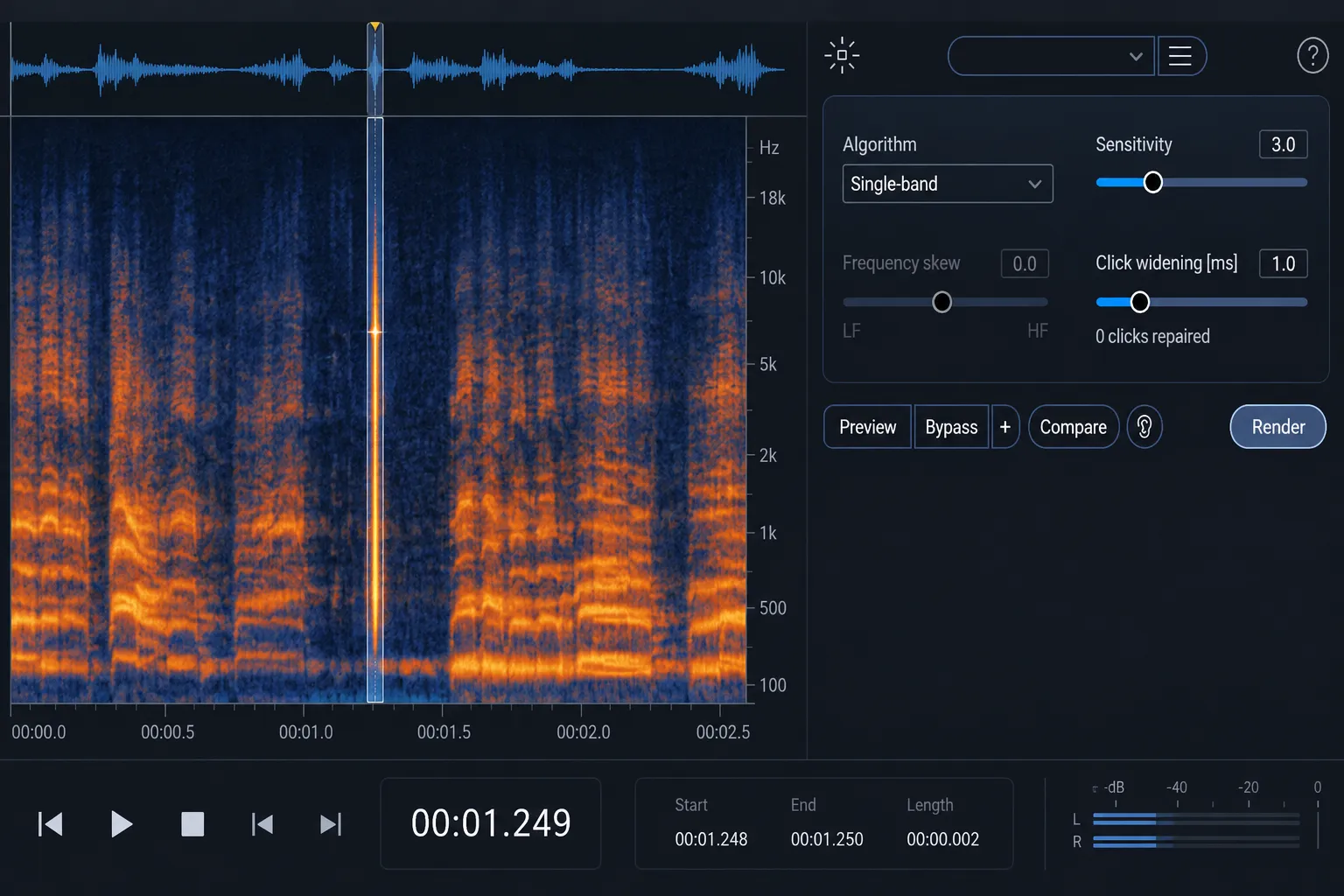
Choose De-click when the event is a short amplitude irregularity: digital clicks, isolated pops, brief interference or repeated narrow impulses. The current RX 12 De-click guide describes Single Band for narrow digital clicks, periodic and random multi-band modes for wider or repeating defects, and Low Latency for clicks that the other modes do not handle well.
Start with the lowest sensitivity that catches the problem. Higher sensitivity detects more candidates but can alter plosives and other legitimate transients. Use Click Widening only when the audible defect extends beyond the initial spike. Preview the output and, where available, monitor the removed signal so that drum attacks, consonants and pick noise are not being classified as damage.
For a single visible click, select a small region and process that region instead of running aggressive settings across the file. For a longer corrupted segment, switch methods. RX documents Spectral Repair as an alternative for damage above roughly 10 ms, where surrounding audio can provide a more suitable local reconstruction.
The De-click tutorial covers algorithm choice and the checks that matter when the material contains legitimate transients.
Desk and mic-stand bumps: click or thump?
A desk tap or mic-stand bump can sound like a click at its start but continue as a low thump. Listen to the whole event before choosing a module. For a brief, isolated impact, try a short selection with De-click: the RX 12 De-click guide identifies Multi-band Random for wider irregular thumps and Multi-band Periodic for regularly repeating ones. Do not choose Periodic just because one bump has a strong low-frequency tail. Preview against the original and check that consonants or musical attacks remain intact.
If the thump or cable rustle lasts beyond a single impulse, locate its time-frequency footprint and work locally. The RX 12 Spectral Repair guide explicitly includes mic-stand bumps and microphone-movement rustle among its examples. Start with a tight selection and compare Attenuate with the unprocessed passage when speech remains audible underneath; a broad Replace selection can also replace wanted speech. If an impact fully masks a syllable, reduce the distraction where possible, but do not promise to recover the missing word. Listen across both edit boundaries in the full sentence.
Use Spectral Repair for a local event
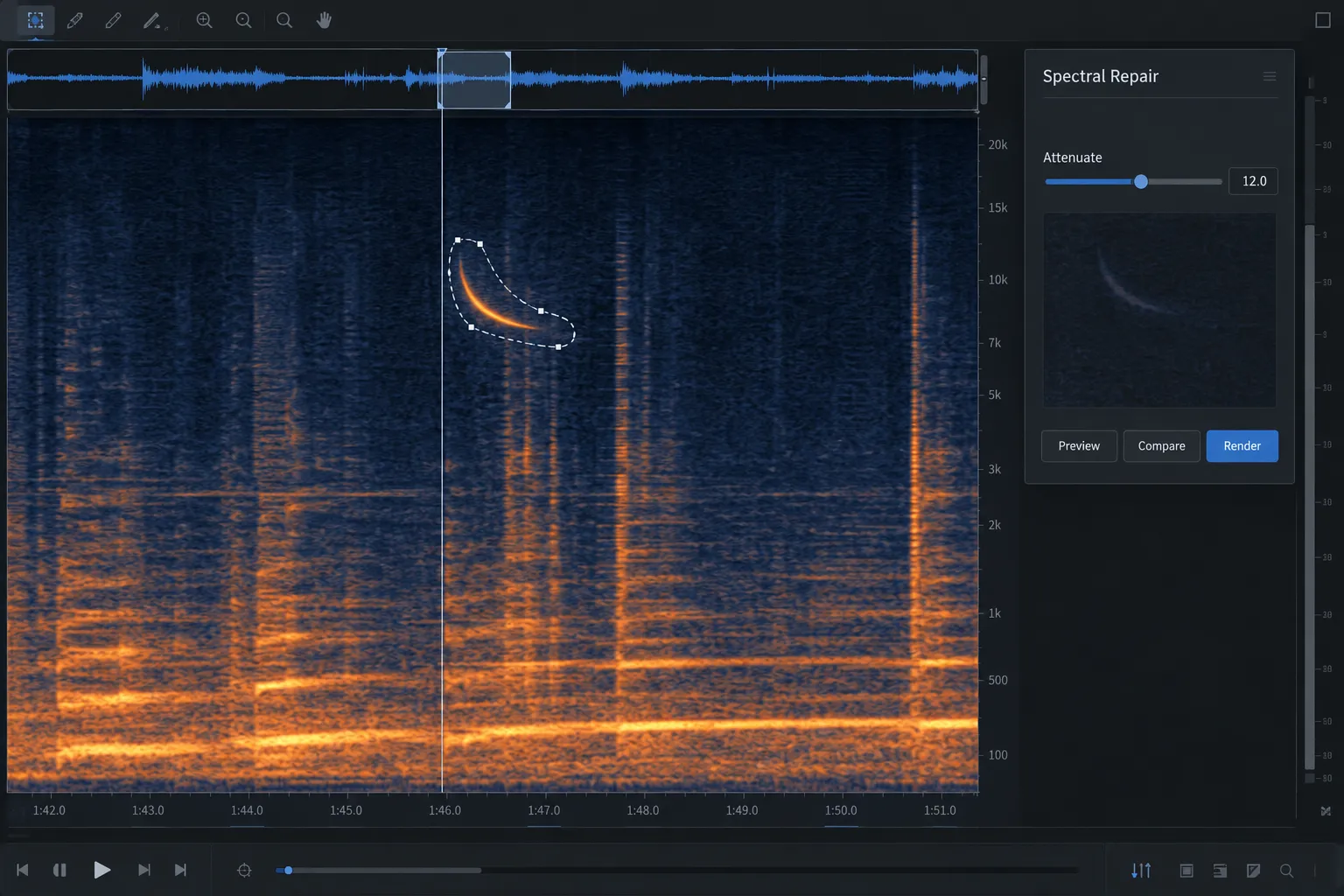
Spectral Repair is the main tool for a noise that has a defined place in time and frequency: a chair squeak under music, a phone ring in dialogue, a mic-stand bump or a short electronic burst. You don't need to process every frequency or every second around the event.
Choose the mode by the job:
- Attenuate lowers an event while retaining some of its structure. Start here when complete removal would create a hole or when wanted audio shares the selection.
- Replace reconstructs the selected area from surrounding material. It suits a local defect that should disappear and has usable context on one or both sides.
- Pattern searches nearby audio for a similar passage. It can help with repeating backgrounds or material where a matching texture exists close to the damage.
- Partials + Noise links harmonic components across the selection and reconstructs residual noise. It is intended for pitched or strongly harmonic material, including modulation such as vibrato.
Surrounding Region Length controls how much neighboring audio RX can use. Before/After Weighting shifts the emphasis toward one side. If the defect sits beside a clean transient, weight away from that transient so its energy is not smeared into the patch. A higher Bands value is not automatically better; short events often need less frequency subdivision than sustained harmonic damage.
Use Compare to audition more than one mode or setting, then listen across the selection boundaries. The Spectral Repair guide explains the modes, selection tools and surrounding-region controls in more detail.
Split complex noises into smaller repairs
A sudden event can contain several acoustic parts. A bicycle bell has a mechanical attack and a tonal ring. A dropped object may have an initial impact, a resonance and room reflections. One large selection asks a single algorithm to rebuild all of them at once.
Repair the parts separately. De-click or a narrow time selection may suit the attack. Spectral Repair Attenuate can reduce a residual ring without replacing wanted audio beneath it. A second small Replace patch can handle a remaining broadband fragment. iZotope's older but still useful intermittent-noise workflow illustrates this multi-pass logic and stresses checking for artifacts after each treatment.
I'd rather judge several conservative passes than one severe pass. Smaller steps also make it clearer which operation caused a softened transient, tonal smear or ambience change.
Use De-hum for tonal interference that persists
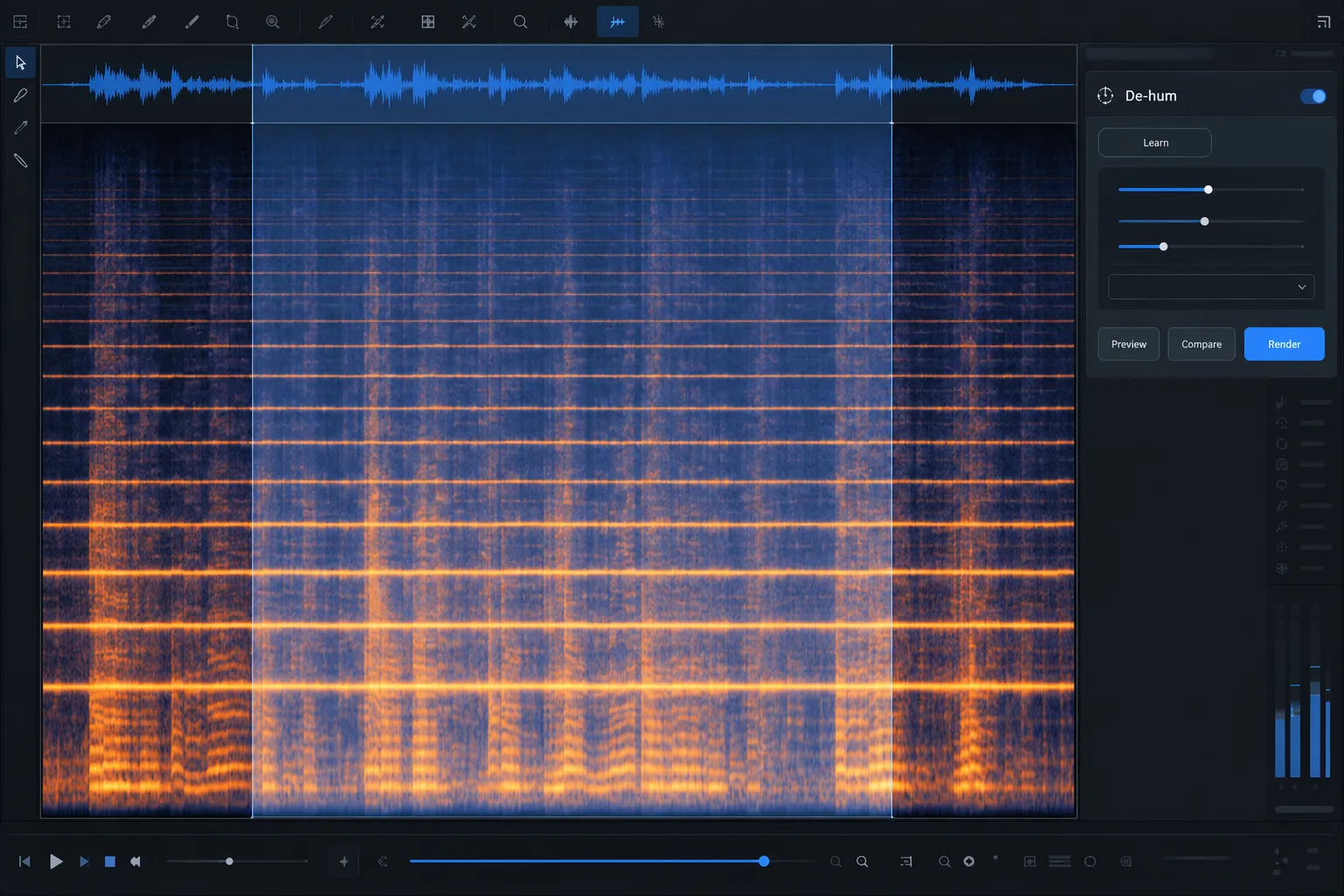
Use De-hum when the interruption is part of a persistent tonal problem: AC hum, electrical buzz or electromagnetic interference with a fundamental and harmonics. Static mode is intended for simpler tonal noise; Dynamic mode handles more complex, inharmonic or speech-overlapping buzz. The RX 12 De-hum documentation also notes that adaptive behavior is useful when the hum changes in pitch.
Learn from a section where the tone is prominent, narrow the processing range and listen to Output Hum Only. The removed signal should be dominated by the interference, not speech fundamentals or musical notes. Excessively narrow, deep notches can ring around transients, so judge Q, harmonic count and filter mode in context.
For one occasional tone rather than a continuing hum family, a narrow spectral selection and vertical Attenuate pass can be cleaner than configuring De-hum for the whole file. The De-hum guide compares the static, dynamic and isolated-tone routes.
Use dialogue modules for changing background around speech
A passing vehicle, crowd burst or changing room noise may overlap most of the speech spectrum. Spectral Repair can patch a short, isolated object, but it becomes less convincing when the wanted voice is fully masked across a broad region.
Dialogue Isolate is designed to separate dialogue from noise and ambience, with separate controls for dialogue, noise and reverb components. Voice De-noise reduces broadband noise around speech and can learn a noise profile or work adaptively. Choose between them according to whether the task is source separation or gentler noise reduction.
When the background change is brief, process only the affected passage. Match the repaired section to the surrounding room tone and don't turn a noisy moment into conspicuous digital silence. If the noise completely covers a word, restoration may reduce the distraction, but it cannot recover information that was never captured clearly.
The Dialogue Isolate guide covers component balancing and artifact checks for speech.
A safe ten-step intermittent-noise workflow
- Preserve the source. Duplicate the file or confirm a reliable rollback point.
- Listen before looking. Mark the audible start and end of the problem.
- Classify the shape. Decide whether it is impulsive, local spectral, tonal or broad background noise.
- Choose the narrowest suitable tool. Avoid a file-wide denoiser for one isolated object.
- Select with context. Include the defect but keep clean transients and unrelated harmonics outside the selection where possible.
- Preview conservatively. Start with moderate reduction and compare against bypass at a similar level.
- Inspect what is removed. Use output-only or selection audition controls when the module provides them.
- Split mixed events. Repair the attack, ring and residual noise separately if their shapes differ.
- Listen through the boundaries. Check ambience, phase, consonants, musical attacks and stereo image before and after the edit.
- Verify in the final chain. Recheck after EQ, compression and limiting, which can reveal a patch that sounded acceptable in isolation.
Common failures and what they mean
The noise is gone, but a hole remains
Usually the selection was too broad, or the replacement had no suitable surrounding texture to borrow from. Undo, tighten the selection and try Attenuate before Replace. If ambience is missing, use a smaller repair or rebuild the bed from a nearby matching section.
A musical note or consonant sounds smeared
The interpolation included wanted harmonic or transient energy. Reduce the selection, change the surrounding-region weighting, lower the number of bands or separate the defect into several passes.
De-click removes legitimate attacks
Sensitivity is too high, the algorithm does not match the click type or the processing range is too broad. Process a selected event, lower sensitivity and inspect the removed signal.
The buzz returns at a different pitch
A static fundamental may not describe the whole passage. Try Dynamic or Adaptive De-hum for drifting interference, or make a local spectral repair when only one short tone is present.
The repaired speech sounds watery
The noise overlaps the voice too much for transparent removal at that reduction. Back off, process only the affected passage and accept some residual noise rather than replacing speech detail with modulation artifacts. A little leftover noise is easier to live with than a voice that swims.
Make the smallest repair that solves the audible problem
Intermittent noise rewards diagnosis more than force. Use De-click for short impulses, Spectral Repair for isolated time-frequency events, De-hum for tonal families and dialogue modules for changing broadband backgrounds around speech. When an event combines several shapes, divide it into several small decisions.
Stop when the noise no longer distracts and the wanted sound remains continuous. The audio repair hub helps compare intermittent noise with clipping, crackle, missing fragments and other repair classes. For routing and DAW choices, continue with the RX workflow hub.