On this page
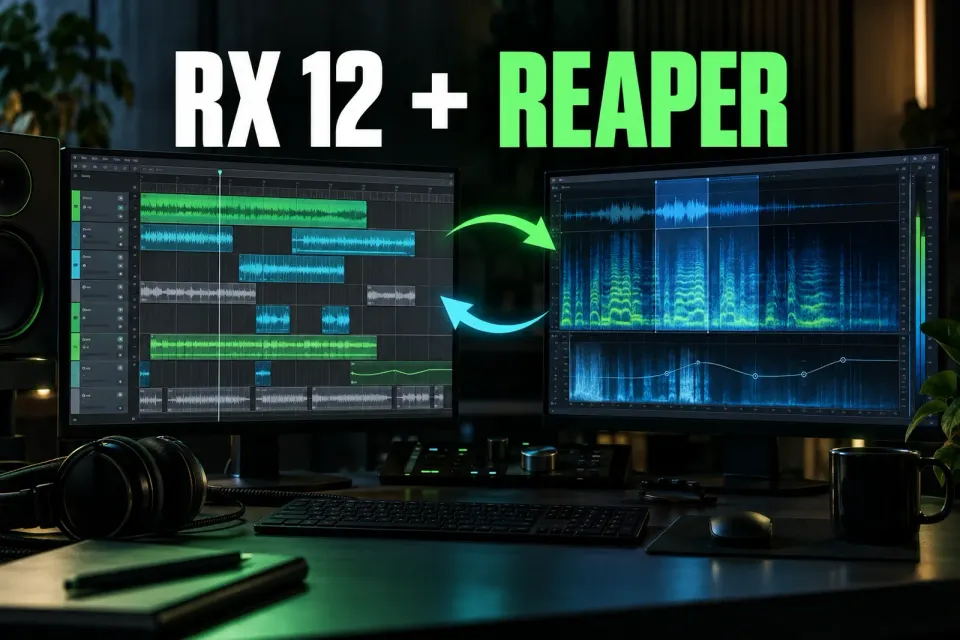
You can use iZotope RX 12 in REAPER in two main ways. Load an RX VST3 plug-in when the correction should stay adjustable in the project. Open a copy of the media item in RX Audio Editor when the repair needs a spectrogram, a local time-frequency selection or an Editor-only module.
REAPER can send either the source item or a copy to an external editor. For RX work that will save changes to a file, the copy route is usually safer. REAPER's own guide makes the same recommendation for destructive editors: the copy is inserted back into the track after it is saved, closed and returned.
Choose the right RX workflow for REAPER
| Route | Use it for | Main boundary |
|---|---|---|
| RX VST3 insert | Steady noise, hum, clicks or other processing that should remain adjustable | Runs in the track or take signal path and does not provide the full Audio Editor workflow |
| Open item copy in RX Audio Editor | One-off noises, detailed spectral repair and Editor-only modules | Creates and changes a media file; verify the returned take and pathname |
| Open source item in RX Audio Editor | A deliberate change to the shared source file | Can affect every project item or project that reads that file |
iZotope's current RX 12 specifications, checked September 18, 2026, list REAPER 7 among confirmed plug-in hosts. RX supplies 64-bit VST3 plug-ins for macOS and Windows, making VST3 the straightforward insert format for a cross-platform REAPER project.
The same RX specifications list Spectral Editor ARA hosts separately, and REAPER isn’t among them. REAPER's general extension or take system doesn’t make it an RX Spectral Editor ARA host. Use an insert or the documented external-editor command. The RX Editor and plug-in comparison explains the boundaries in more detail.
Workflow 1: load an RX VST3 plug-in
Add the required RX module to the track FX chain when the defect runs continuously across the item or track. Put corrective processing before compression, saturation and bright EQ when those later stages would emphasize the problem. A compressor can raise background noise between phrases, and a high-frequency boost can make hiss and clicks more obvious.
A take FX chain fits better when the correction belongs to one take and should move with that item. Check the full signal path before deciding where RX belongs: track FX, take FX, item gain and later routing can all change what reaches the processor and what you hear during comparison.
Bypass the module and compare at a similar level. Keep the reduction modest enough to preserve transients, consonants and room tone. If the plug-in is missing, follow the RX plug-in visibility checklist before moving component files or resetting unrelated REAPER preferences.
Configure RX Audio Editor in REAPER
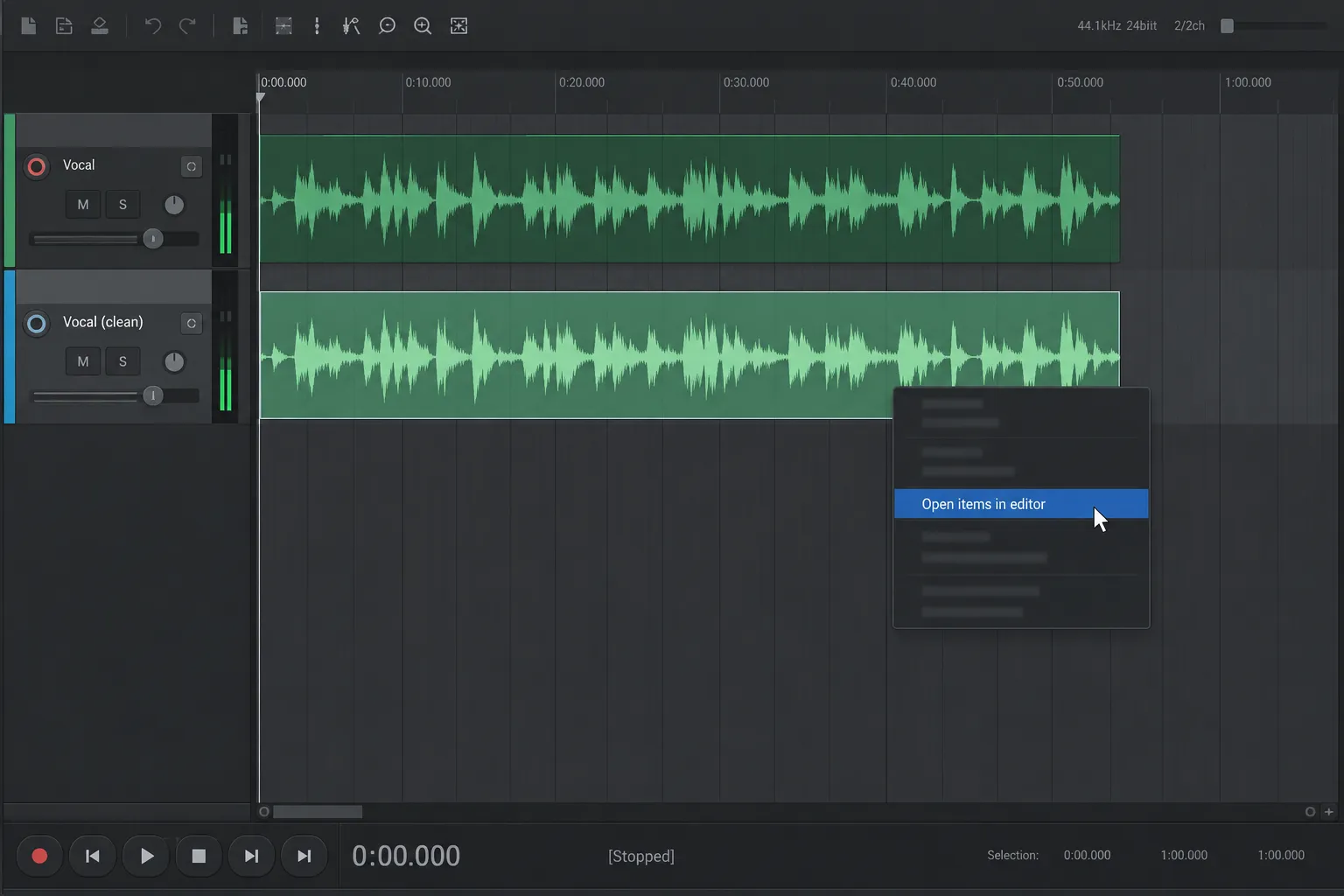
Open Options → Preferences and select External Editors. Add iZotope RX Audio Editor as an editor for the file types you intend to send, such as WAV. REAPER 7.80 can store up to two external editor programs and can use different editors for different file types.
To open a repair, right-click the media item and choose Open items in editor. The submenu offers the source item and a copy. Use the copy unless you have a clear reason to change the source file for every item that references it.
A duplicate item on the timeline may still be the same audio file. Several items can point to one source while carrying different trims, fades, take FX, pitch or playback-rate settings. Opening the source in RX bypasses that project-level separation and changes the file those items share.
Why REAPER's copy command is the safe default
REAPER's 7.80 user guide distinguishes normal item editing from external source editing. Ordinary item edits are non-destructive: they change the project's instructions and leave the source file alone. RX Audio Editor can save directly to a file, so the risk changes once the source itself is opened.
Open item copies in editor creates a working copy for the external editor. After you save the copy in RX, close the editor and return to REAPER, the copy is inserted into the track. Depending on the project and action context, inspect the active take and source pathname rather than assuming the visible waveform proves which file is playing.
Opening the source can make sense when one canonical recording truly needs to change everywhere. Before you do it, search the project for other uses, preserve the original media and check whether another project also links to the same file. A project backup won’t automatically duplicate all external media.
Nine steps for a safe REAPER-to-RX repair
- Choose the route. Use a VST3 insert for adjustable continuous processing. Use RX Audio Editor for local spectral work.
- Save the project. Preserve the original recording or confirm that the project media has a restorable backup.
- Check the item state. Note the active take, source pathname, item start offset, playback rate, pitch, fades and take FX.
- Open a copy. Right-click the item, choose Open items in editor, then choose the command that opens an item copy in RX.
- Repair only the defect. Select enough context to hear transitions, preview the module and avoid broad processing when a narrow selection will work.
- Preserve required timing. Do not trim the front, change speed or alter duration when the returned item must keep the same edit relationship.
- Save the working copy. Save the audio file RX received. Do not substitute an RX Document for the WAV or AIFF that REAPER expects.
- Close and return. Close the external editor or finish the external-edit action so REAPER can insert or reveal the repaired copy.
- Verify the result. Check the active take, source path, duration, start offset, fades, channels, phase, sample rate and surrounding edits before removing the protected source.
Listen through the repair with downstream processing enabled. A spectral patch can look smooth yet create a room-tone dip, softened consonant or phase change that appears only after EQ and compression.
Use Glue or render only when its printed state is intentional
Glue items creates new media and leaves the original items untouched. That’s handy when several edits should become one independent file before RX. The REAPER guide also notes that Glue can incorporate item gain and take FX into the new media.
That means Glue is not always a neutral duplicate. If an item is pitched, stretched, faded, gain-adjusted or carrying take FX, decide whether those choices should be printed before the file reaches RX. Compare the glued media with the source and keep enough handles around the intended repair.
Render when RX should receive a more specific signal path, such as processing after selected track FX or routing. Define the range, channels and tail deliberately, then import the repaired file as new media before replacing anything. A clear filename and preserved source make the return easier to audit.
Save the audio file REAPER expects
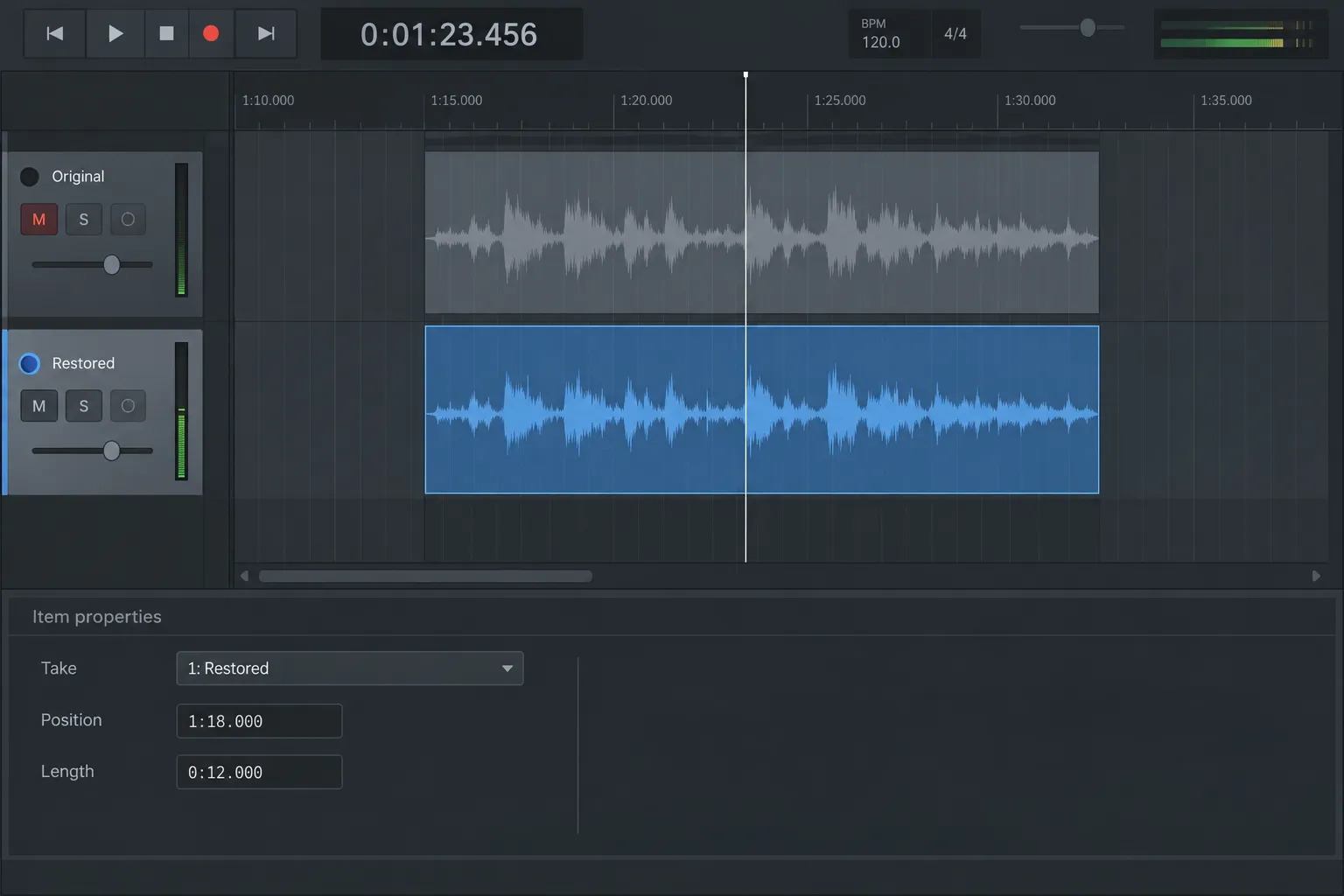
During the copy workflow, save the audio file opened by RX. Save on an open WAV or AIFF updates that working file. Save As creates a different pathname, so REAPER may continue to follow the copy it originally created rather than the alternate file.
An .rxdoc is useful for preserving an editable RX session, but it isn’t the ordinary audio file REAPER plays. Keep the RX Document separately and save or export the repaired audio to the known working file. The RX import, export and safe-saving guide covers these file commands and compressed-format behavior.
After returning, open the item's source properties and verify the pathname. If the repair appears as another take, confirm which take is active and keep the original until the new version has passed the full context check.
Repairs that benefit from RX Audio Editor
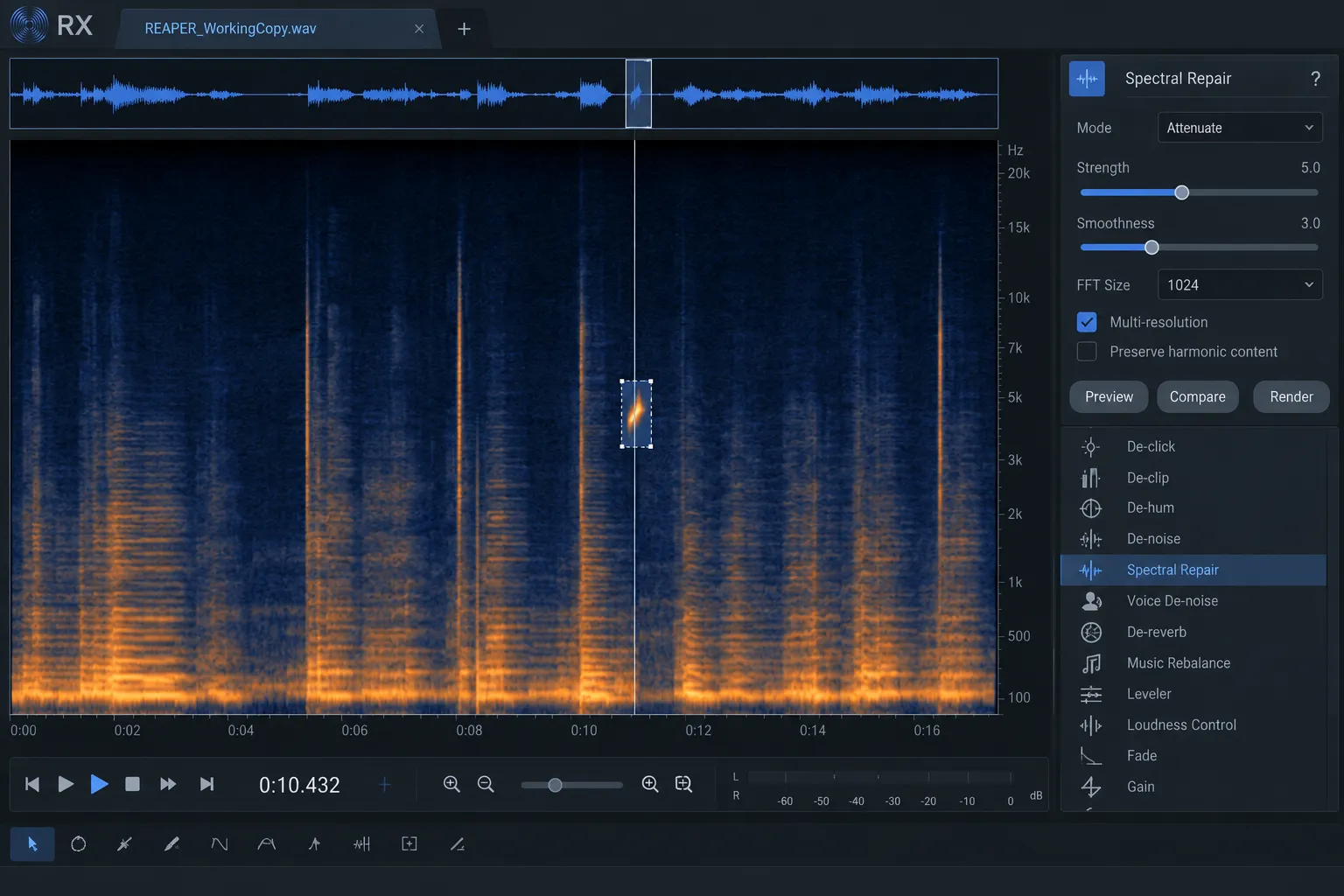
Switch to the Editor when the defect occupies a specific moment or frequency region. A chair squeak under a sustained note, a cable click between words or a short electronic burst can often be isolated more precisely than an insert processing the whole item.
Choose the narrowest suitable module. De-click suits impulsive defects; Spectral Repair is useful when surrounding audio can support a local replacement or attenuation. The RX Spectral Repair guide explains selection shape, modes and artifact checks.
Approve with your ears; a clean-looking spectrogram proves little. Listen before the selection, through the repair and after it, then check the result in the full arrangement. Stop once the defect no longer distracts and the surrounding sound stays continuous.
Common REAPER–RX problems
RX opens, but saving changes several items
The source file was probably opened rather than a copy. Restore the protected source, repeat the repair with Open item copies in editor, and verify the returned pathname before accepting the new take.
The repaired file does not appear in REAPER
Confirm that the working audio file was saved and the external editor was closed or the edit action was completed. If Save As was used, import that new pathname deliberately. Check the item's take list and source properties before repeating the repair.
The returned item is out of time
Compare the repaired file's duration and leading audio with the copy RX received. Trimming the front, changing speed or exporting only a selection can alter the item's relationship to its start offset. Restore the equal-length copy or place the new media manually against a known sync reference.
The repair contains unexpected effects
Check whether Glue printed item gain or take FX, or whether a render included track processing. Create a new working file from the intended source state and label it so the printed chain is clear.
The RX VST3 plug-in is missing
Confirm that the 64-bit VST3 component was installed and that REAPER scanned the correct system VST3 location. Review the failed plug-in list and rescan only after checking the actual component path.
Keep the source, then choose iteration or precision
An RX insert suits settings that may change during the mix. The external Audio Editor suits cases where a local spectral selection will produce a cleaner decision. For that second route, REAPER's copy command is the sensible default because it preserves the source while giving RX a real file to edit.
My rule is simple: know whether you opened the source or a copy, then verify which file and take REAPER plays after the return. For more DAW-specific options, see the RX workflow hub.