On this page
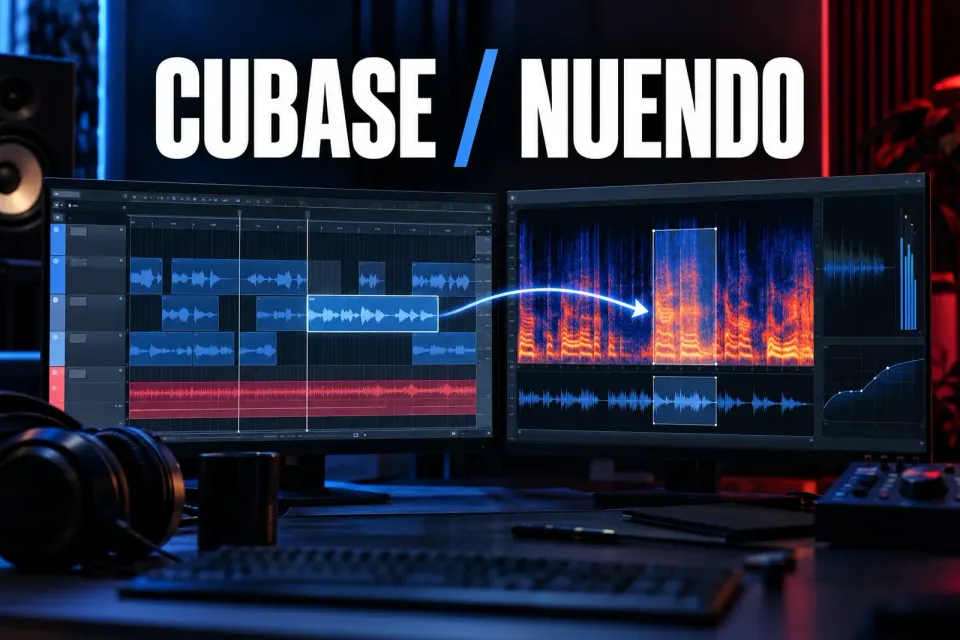
You can use iZotope RX 12 in Cubase or Nuendo in three ways. Load an RX VST3 plug-in when the processing should stay adjustable on a track. Go through RX Connect in Direct Offline Processing when a selected event or range needs the RX Audio Editor. Fall back on a controlled file export and import when the repair should become separate media or Connect is unavailable.
One detail in the RX Connect exchange causes most failed returns: Apply is used twice. The first Apply sends the selected audio to RX. After the repair, Send Back prepares the result, and the second Apply in Cubase or Nuendo commits that returned audio. Disable Auto Apply before starting and leave RX Connect in the process list until the exchange is complete.
Choose the right RX route
| Route | Best for | Main boundary |
|---|---|---|
| RX VST3 insert | Steady noise, hum, clicks or other processing that should remain adjustable in the mix | Processes the track signal; it does not provide the Audio Editor's free spectral selection |
| RX Connect through Direct Offline Processing | Local repair on a selected event or range with RX Audio Editor tools | Requires the send, repair, Send Back and second Apply sequence |
| Export/import round trip | A new repaired file, an archival hand-off or a fallback when Connect is not suitable | You must control the rendered range, format, channels, sample rate and replacement step |
iZotope's current RX 12 specifications, checked September 18, 2026, list Cubase 15 and Nuendo 15 among confirmed plug-in hosts. RX supplies 64-bit VST3 plug-ins, which are the common insert format for both Steinberg applications.
Cubase and Nuendo support extension-based editing workflows, but that fact alone does not establish compatibility for every ARA product. iZotope lists RX Spectral Editor VST3 ARA for Studio One 7 and Fender Studio Pro 8; Cubase and Nuendo are not named in that RX Spectral Editor ARA host list. For these Steinberg hosts, plan around VST3 inserts and RX Connect rather than assuming an ARA layer is available. For Studio One or Logic troubleshooting, use the RX ARA guide.
The broader RX Editor, plug-in and Connect comparison explains what each route can and cannot do.
Workflow 1: use an RX VST3 insert
Load the required RX module as an insert on the audio track or a suitable group. Put corrective processing before compressors, saturation and bright EQ when those later stages would exaggerate the defect. Bypass the module and compare at a similar loudness so a level change doesn’t make the decision for you.
An insert works well when the problem is consistent across the signal: broadband noise under dialogue, a recurring mains hum, repeated clicks or another defect that does not require drawing a narrow time-frequency selection. Keep the reduction conservative and listen through edits, fades and crossfades. The cleanest solo setting can sound unnaturally gated or thin in context.
If the plug-in is missing, confirm that the intended 64-bit VST3 component is installed and that Steinberg's plug-in manager has not blocked or blacklisted it. Use the RX plug-in visibility checklist before moving files or adding arbitrary scan paths.
Workflow 2: prepare RX Connect correctly
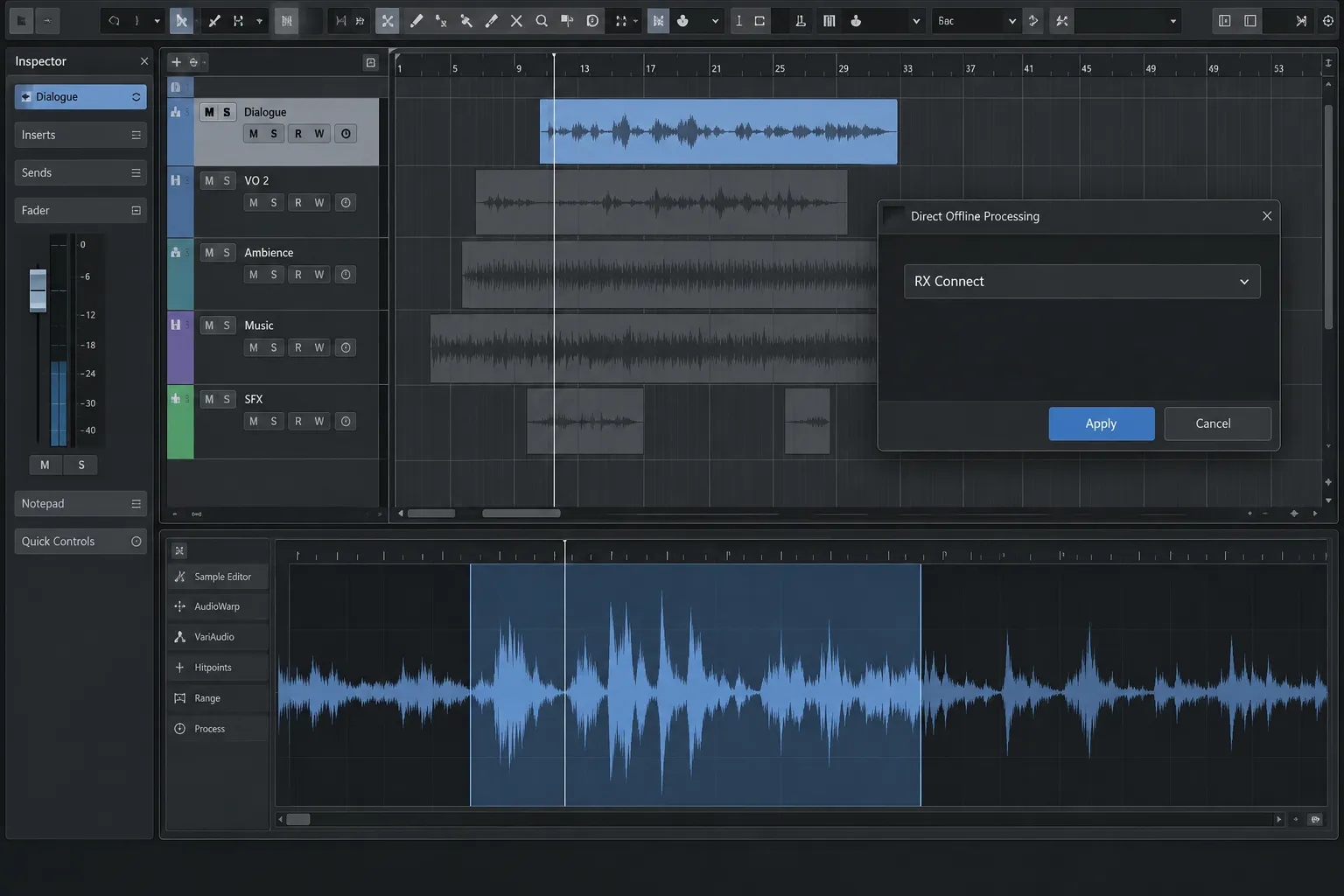
RX Connect is a transfer plug-in rather than a normal real-time insert. In Cubase or Nuendo, select the event or exact range that needs repair, open Direct Offline Processing, and add RX Connect to the process list.
Before the first transfer, turn Auto Apply off. Auto Apply is useful for ordinary offline effects that should process immediately, but it conflicts with a two-stage exchange that must leave time for work in the external RX Audio Editor.
Keep the RX Audio Editor available and save the project before the exchange. Preserve an unprocessed source or a reversible project checkpoint. Direct Offline Processing is designed to retain process history, but I wouldn’t let it be the only copy of irreplaceable production audio.
Nine steps for RX Connect in Cubase or Nuendo
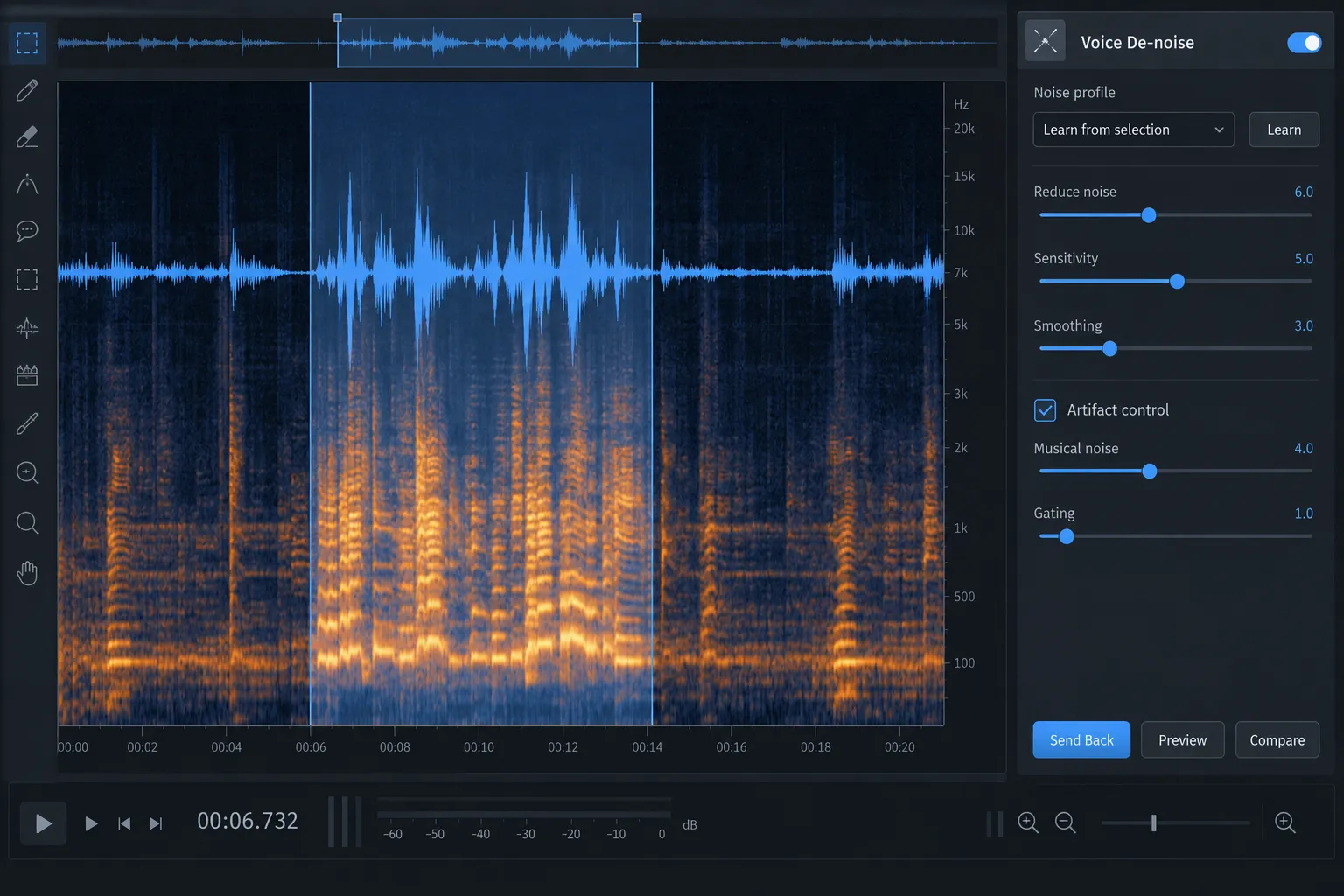
- Select the target. Choose the audio event or range that contains the defect. Include enough clean context to judge the transition into and out of the repair.
- Open Direct Offline Processing. Add RX Connect to the selected event's process list.
- Disable Auto Apply. Confirm it is off before starting the transfer.
- Send the audio. Click Apply once. This first Apply transfers the current selection to RX Audio Editor.
- Repair the defect in RX. Use the narrowest suitable module or spectral selection. Preview with surrounding audio and avoid processing more material than necessary.
- Prepare the return. In RX, choose Send Back. Do not close the exchange before RX has prepared the processed result.
- Return to Cubase or Nuendo. Keep RX Connect in the Direct Offline Processing list. Removing it now can interrupt the expected return path.
- Commit the returned result. Click Apply a second time. This Apply is the return/commit stage; it doesn’t repeat the original send.
- Approve in context. Listen before, through and after the repaired section. Check event boundaries, fades, phase, channel layout, sync and the rest of the edit before making processing permanent.
For multiple unrelated defects, work in deliberate selections instead of sending an entire production by habit. A smaller transfer is easier to compare, and it keeps the process list understandable when several events need different repairs.
Why RX Connect uses Apply twice
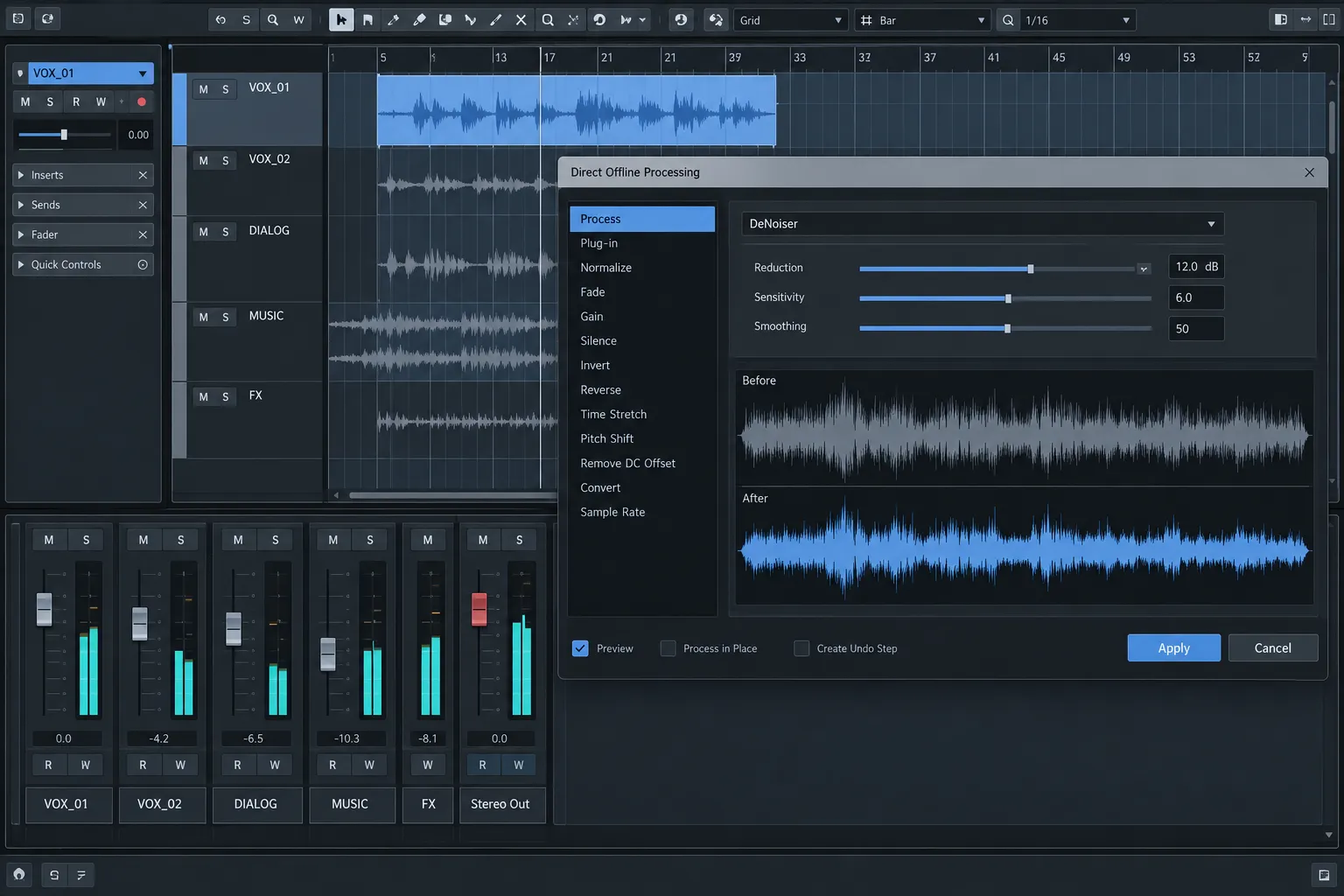
Direct Offline Processing normally treats Apply as the instruction to run the selected process. RX Connect slips an external-editor exchange between two host actions. The first Apply packages and sends the selection. RX then holds the repair work. Send Back prepares the processed audio for the host. The second Apply tells Cubase or Nuendo to accept that returned version for the selected event.
Stop after Send Back and the work can look missing, because the host-side return hasn’t been committed. Click Apply with Auto Apply enabled, or alter the process list at the wrong moment, and the sequence gets harder to diagnose. Think of the four actions as one chain: Apply → repair → Send Back → Apply.
Do not use RX's ordinary Save or Save As commands as a substitute for Send Back during a Connect session. Those commands belong to file-based work. Connect expects its own return action and a final host-side Apply.
Use Direct Offline Processing as a review layer
Steinberg's Direct Offline Processing documentation describes a process-based workflow for selected audio. Keep the event selected while checking the process chain, and name or organize project versions so you can tell which material has already passed through RX.
Audition the result with the full signal path. A repair approved in isolation can reveal a room-tone hole after a compressor, or soften a consonant that becomes obvious under dialogue EQ. Compare against the protected source and listen at the edit boundary as well as the center of the defect.
Save Make Permanent for after approval. Steinberg documents this command as removing the process list, and the operation can’t be undone. In practice: verify the repair, save a project checkpoint or retain the source, and make processing permanent only once you no longer need the editable process history.
Workflow 3: use a controlled file round trip
A file round trip is useful when the repair should be a clearly named new asset, when another editor must receive it, or when RX Connect is unavailable. Export or bounce the exact source state you intend to repair. Decide whether the file should include clip gain, fades, channel processing, group processing or no mix processing at all.
Use a lossless working format such as WAV and preserve the project's sample rate and channel layout unless a deliberate conversion is required. Include handles when the repair needs context around an edit. Record the start position or use a broadcast-wave timestamp when the production workflow depends on absolute placement.
Open that working file in RX Audio Editor, keep the untouched source, and save or export the repaired version under a clear name. Then import or replace it deliberately in Cubase/Nuendo and check sync, length, channels and fades. The RX import, export and safe-saving guide explains Save, Save As, Export and RX Document behavior.
For a folder of independent files that all need the same bounded operation, a DAW round trip may add unnecessary handling. Review the RX Batch Processor workflow, then confirm that one shared chain is actually suitable before applying it to the set.
Common Cubase/Nuendo–RX problems
Apply sent audio to RX, but the repair did not return
Return to RX and confirm that Send Back was used. Then return to Direct Offline Processing and click Apply a second time. The first Apply is the send; the second is the host-side return.
RX Connect processed immediately or the exchange behaved unpredictably
Check whether Auto Apply was enabled. Disable it, restore the protected source or project checkpoint, and repeat the exchange in the documented sequence.
RX Connect disappeared from the process list
If it was removed before the return, restore or undo to a known event state and repeat the transfer. Keep Connect in the Direct Offline Processing list until Send Back and the second Apply have completed.
The RX plug-in works, but the Audio Editor does not open
A VST3 insert and RX Connect are different components and workflows. Confirm that RX Audio Editor and RX Connect were installed, that the application can open independently, and that RX Connect is being added from Direct Offline Processing rather than as a real-time track insert.
The result is out of sync or has the wrong channels
For a Connect repair, verify the original event selection and boundaries. For a file round trip, compare the exported start position, duration, sample rate and mono/stereo or multichannel layout. Reimport as new media first if replacing the event would hide the cause.
Make Permanent removed the editable history
That command is intentionally irreversible. Recover from the saved project checkpoint, original media or another retained version. Do not make the replacement permanent again until the repaired event has passed the full context check.
Use Connect for selections and inserts for iteration
Start with an RX VST3 insert when the problem is continuous and settings may change during the mix. RX Connect fits when one event or range needs the Audio Editor's local spectral tools. A file round trip makes sense when the repaired result should be a separate, portable asset.
The dependable Connect sequence is short enough to memorize: turn off Auto Apply, Apply to send, repair, Send Back, then Apply to return. Keep a protected source and hold off on Make Permanent until the result has been approved. For more host and editor routes, head to the RX workflow hub.